
Manual Desktop version
- Watch the Easy Startup Guide video
- 1. Before Using SYNCROOM
- 1-1. Recommended Environment
- 1-2. Communication Environment
- 2. How to Install SYNCROOM
- 2-1. Download
- 2-2. Install
- 2-2-1. For Windows
- 2-2-2. For Mac
- 2-3. Uninstall
- 2-3-1. For Windows
- 2-3-2. For Mac
- 2-4. Start the application
- 3. Rooms Screen (Home Screen)
- 3-1. Room Search Area
- 3-2. Entering a Room by Entering a Room ID
- 3-3. Toggling Between Room Tabs
- 3-4. Room Cards
- 3-5. MY ROOMS
- 3-5-1. Creating Rooms
- 3-5-2. Sharing Room Information
- 3-5-3. Editing Rooms
- 3-5-4. Deleting Rooms
- 3-6. Entering Rooms
- 4. Room Screen
- 4-1. Input Area
- 4-2. Playing Audio Files
- 4-3. Metronome
- 4-4. Main Out
- 4-5. Recording
- 4-6. EXIT
- 4-7. Member Settings Area
- 4-7-1. Volume and Pan Pot
- 4-7-2. Connection Status
- 4-7-3. Audio Advanced Settings
- 4-7-4. Recording
- 4-7-5. Reconnection display
- 4-7-6. Connect to Room
- 4-7-7. X Icon
- 4-7-8. Share Room Link
- 4-8. Chat Area
- 4-9. Room Window
- 4-10. Member Detailed Display
- 4-11. room details for the currently entered room.
- 5. Users Screen
- 5-1. Searching for Users
- 5-2. User Detailed Display
- 5-3. Adding Users to Favorites
- 5-4. Blocking Users
- 6. My Profile
- 7. SETTINGS
- 7-1. Basic Settings
- 7-2. Audio Device Settings
- 7-2-1. If You Selected ASIO (Windows)
- 7-2-2. If You Selected “WASAPI shared mode” or “WASAPI exclusive mode” (Windows)
- 7-2-3. If You Selected DirectSound (Windows)
- 7-2-4. If You Selected Core Audio (Mac)
- 7-3. Audio Data Interpolation Processing Settings
- 7-4. Basic Sound Quality Settings
- 7-5. General Settings
- 7-5-1. MIDI Control Settings
- 7-5-2. Alert Sound Settings
- 7-5-3. Automatic display of new chat messages
- 7-5-4. Display of Recommended Updates
- 7-5-5. Privacy Settings
- 7-6. Environment Test
- 7-6-1. Performing an Environment Test
- 7-6-2. Confirming Results
- 7-7. Tutorial
- 7-8. Account
- 8. How to Use the VST Linkage Function
- 8-1. About the VST Linkage Function
- 8-2. Installing VST Plug-ins
- 8-3. Examples of Using VST Plug-ins
- 8-3-1. Using in Combination with VST Instruments
- 8-3-2. Using Audio Inputted from a Microphone or Other Device
- 8-3-3. Simultaneously Using Audio Inputted from a Microphone and VST Instrument
- 8-3-4. Using as Multi-outputs
- 9. General functions
- 9-1. Keyboard shortcuts
1. Before Using SYNCROOM
1-1. Recommended Environment
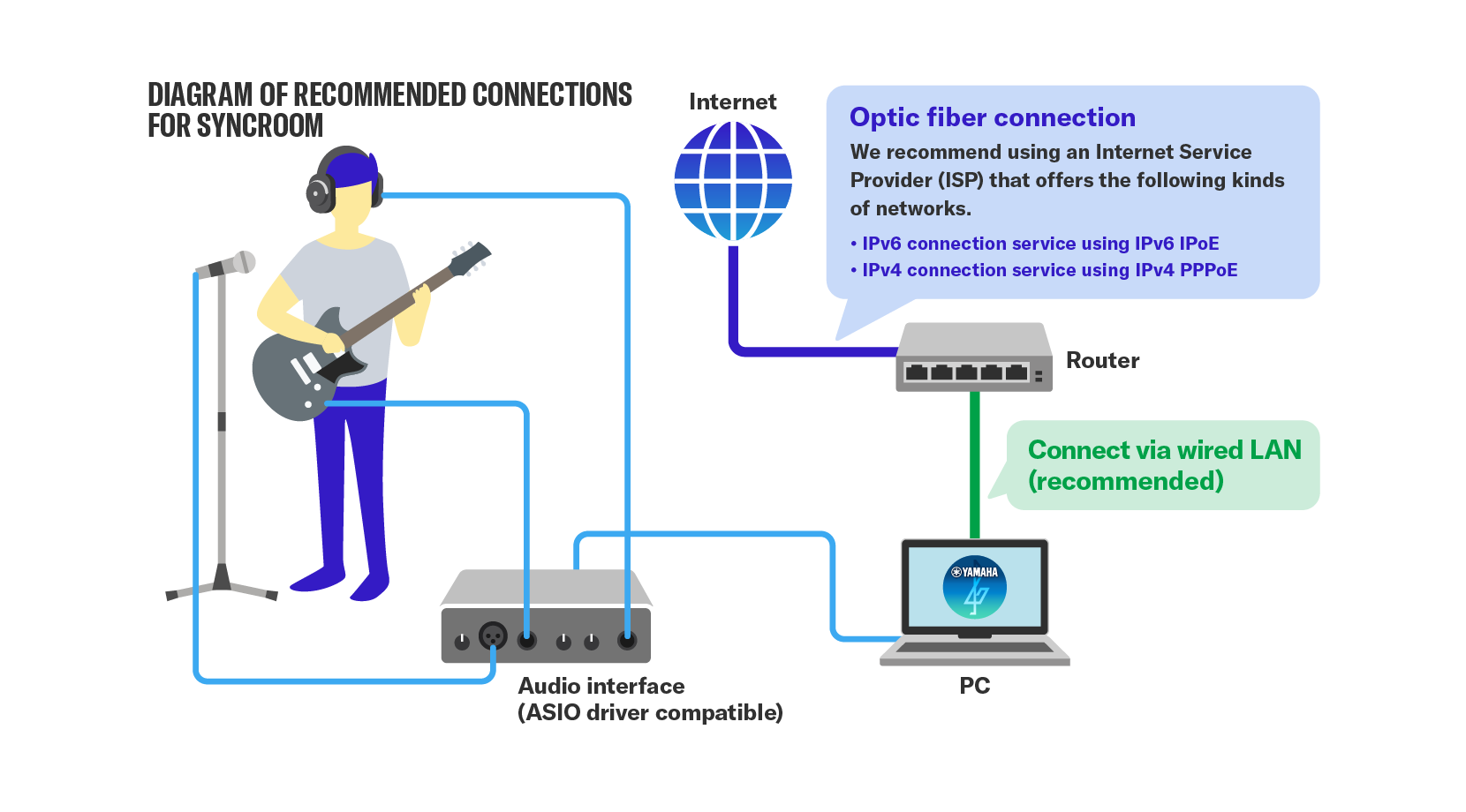
Certain environmental requirements must be met to have an enjoyable session on SYNCROOM. Before using SYNCROOM, please prepare the following equipment and environment.
- A device that can use SYNCROOM (a device with a compatible OS)
- Audio interface (for Windows, one that supports ASIO drivers)
- Broadband environment such as optic fiber (wired internet connection)
1-2. Communication Environment
① With SYNCROOM, it is important to not simply have a fast communication speed (capable of large-space communication per second), but to be able to communicate stably in smaller time units.
② Even if you contract with the same provider and the same service, connection status varies depending on the area and time of use, so it is difficult to define "the correct line setup". If the line is congested, it may happen that you cannot connect to the room, or there will be greater latency.
③ In SYNCROOM audio communication, user terminals communicate directly with each other without going through a server (P2P connection). Audio communication may be affected depending on the line status of the other users.
④ Communication is often unstable with a wireless connection, and the latency increases, so use a wired connection in order to establish a session.
*Note that even with a wired internet connection, if the cable is an old standard, it may not be very fast.
⑤ If you are using IPv4-as-a-Service, connection with the other users may be affected depending on the characteristics of the service. Also see the FAQ "Can SYNCROOM be used with IPv4-as-a-Service network service?".
2. How to Install SYNCROOM
2-1. Download
From this page, download the file corresponding to your PC.
2-2. Install
2-2-1. For Windows
*This section explains using screenshots on Windows 10. (The shape of the window may differ depending on the version of the OS or browser.)
First, unzip the downloaded file. Next, double-click the "SYNCROOM-EN-win-x64-2.X.X.exe" file generated by unpacking to start the installation.
*2.X.X contains the version number.
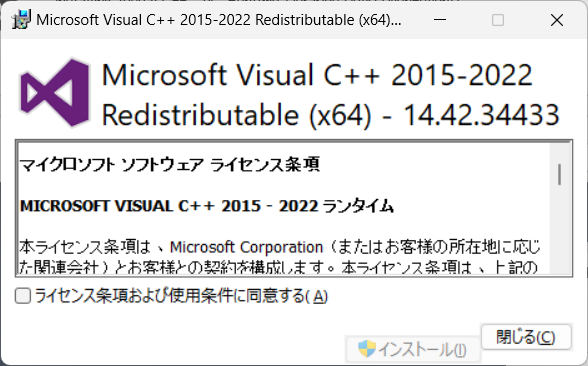
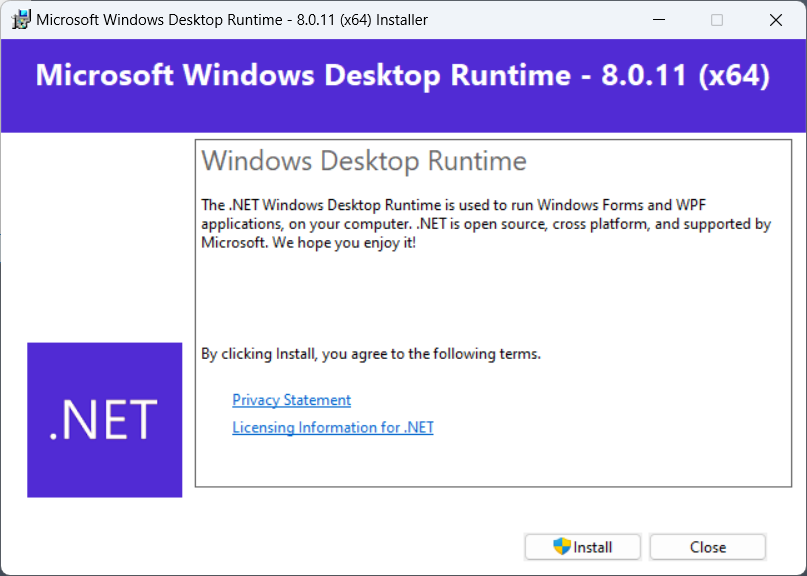
Software necessary to run SYNCROOM may also be installed in some cases. If the dialog below appears, please click “Install.”

Click "Next".
(If SYNCROOM2 is already installed, you will select to repair or delete it.)

Read the Software License Agreement for the country or region where you will use SYNCROOM.
To agree, select “I agree”, then click “Next”.

To change the installation folder, change the folder location.
Click Next.

Select an installation type.
Select "Standard" to do default installation.
*Yamaha SYNCROOM Driver sends SYNCROOM voice output to streaming applications. For details, see the FAQ "How can I broadcast the audio played in SYNCROOM on a live streaming service?" .
Click "Next".

Click "Next".

Click "Next".

If the "User Account Control" window appears during installation, click "Yes".

A Windows security window may open. In that case, click "Install".

*In rare cases, such as when performing other operations during installation, this screen may be displayed behind other windows. Move the other windows to display this screen, then click "Install" or "Continue".
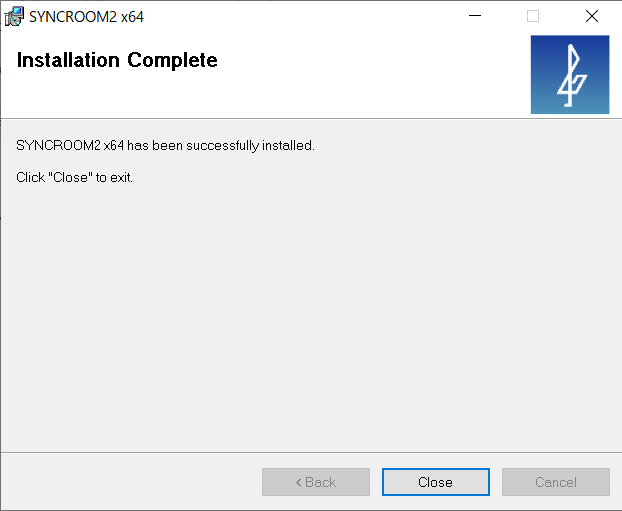
Installation is complete.
Click "Close".
2-2-2. For Mac
First, unzip the downloaded file.
Mount the .dmg file generated by unpacking and you will find that it contains the installer package.
Double-click SYNCROOM2 to start the installation.

Click "Continue".

After reading the Software License Agreement for the country or region where you will use SYNCROOM, click “Continue”.

To agree, click “I agree”.

Follow the instructions and click "Install".

When the installation is complete, click "Close".
SYNCROOM2 will be installed in "Applications" > "Yamaha" > "SYNCROOM2".

2-3. Uninstall
2-3-1. For Windows
SYNCROOM can be uninstalled by either method A or B below.
A. Delete from Control Panel
Click the "Settings Icon" from the Start button.

From the "Windows Settings" window that appears, click "Apps".
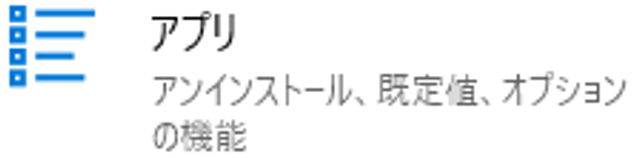
From the list of applications in "Apps & Features", find and click on "SYNCROOM2".
Click the "Uninstall" button to start uninstallation.

B. Use SYNCROOM installer and select delete.
Run the downloaded installer again and select "Delete SYNCROOM2" to start uninstallation.
2-3-2. For Mac
Mount the downloaded .dmg file and you will find that it contains the uninstaller.
Double-click the uninstaller to open it and follow the instructions to uninstall SYNCROOM.

2-4. Start the application
After install the application, double-click the SYNCROOM2 icon on your desktop to start it.
The first time you start the application, follow the tutorial displayed to configure it.
Please refer to this simple startup guide
3. Rooms Screen (Home Screen)
On the Rooms screen, you can perform actions such as searching for rooms and creating new rooms.

3-1. Room Search Area
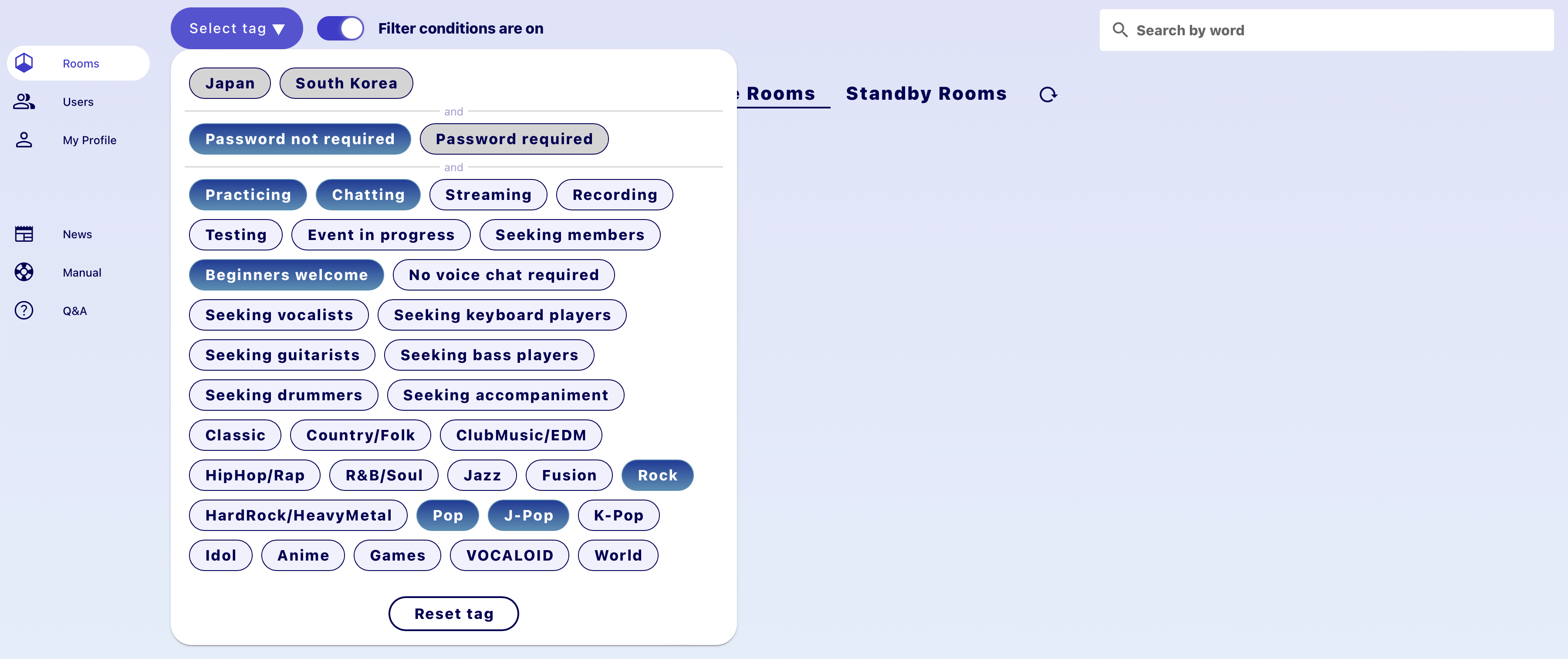
Use this area to search for rooms. You can filter your search results by region, tags, or whether the room requires a password. If you switch on “Filter conditions ON”, a list of filtered room search results will appear. Enter a room that interests you based on the room’s description, tags, and other info, and try playing a session there.
3-2. Entering a Room by Entering a Room ID
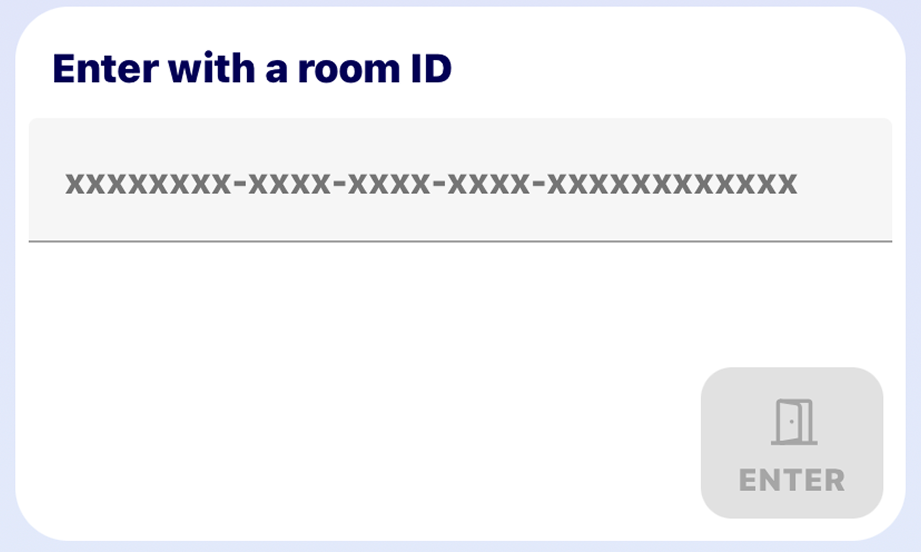
If you were given a Room ID beforehand, you can enter a room by entering its ID.
3-3. Toggling Between Room Tabs

If you toggle between the Active Rooms and Standby Rooms tabs on top of the screen, you can see the rooms you can currently enter and rooms that are on standby.
- Active Room: Room that you can currently enter.
- Standby Room: Room you cannot join until the room creator has entered.
Note: If a room creator did not immediately enter the room when it was created, it will be a “Standby Room”. When the room’s creator enters a Standby Room, it will become an “Active Room” and other users will be able to enter.
3-4. Room Cards
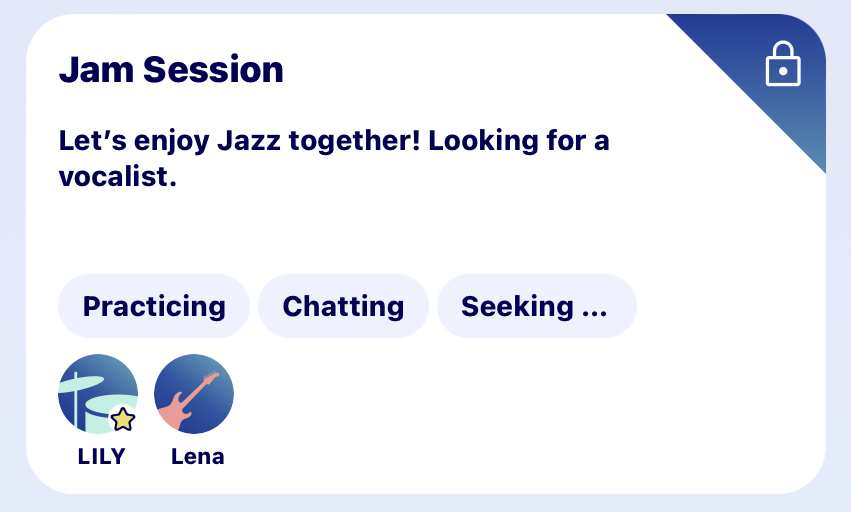
A room card contains the following information about the room.
- ❶ Room name
- ❷ Password icon
This icon will only appear on rooms that require a password.
- ❸ Room comments
- ❹ Room tags
- ❺ Number of people in room
The maximum room participants and the number of room participants are displayed.
- ❻ Room participants
The “favorites” icon will be displayed on the icon of users you have added to your favorites.
- ❼ Room creator
The user name of the room creator will be in blue.
- ❽ PREVIEW and ENTER buttons
If you move the mouse over a room card, two buttons will appear: PREVIEW and ENTER.
- PREVIEW: Enter the room for 30 seconds to listen in on the session (the other members will not be able to hear you). When the 30 seconds are up, you will not be able to click the PREVIEW button again for a little while.
- ENTER: Enter the room. When you click the ENTER button, the ROOM ENTRY SETTINGS window will open. Here you can select your part and configure audio device settings. For details on ROOM ENTRY SETTINGS, see ROOM ENTRY SETTINGS.
3-5. MY ROOMS
 Click the button on the lower right to open the MY ROOMS window. You can add rooms, and view and edit the rooms you created.

3-5-1. Creating Rooms
Click the + button to create a new room. When you create the room, enter the following information, and click “Create room”.

- ❶ Room name
Enter whatever name you like for the room.
- ❷ Comments (room description)
Enter a description of the room. This will help other users find a room that suits them.
- ❸ Tags
Select which tags will be displayed on the Rooms screen. This will help other users find a room that suits them. You can also add custom tags.
- ❹ Making Rooms Public
If you switch “Make room public” on, the room you created will be displayed in the Room List window. When you enter your room, it will appear under the “Active Rooms” tab. If you do not enter the room, it will appear under the “Standby Rooms” tab.
- ❺ Setting a Password
If you set a password, only users who know the password can enter the room. You do not have to set a password. Consider the following to determine whether you should set a password.
- You only want to play sessions with friends and acquaintances: Set a password
- You want to create a room where anyone can freely come and go: Do not set a password.
- ❻ Maximum room participants setting
Users who are signed up for a subscription plan will be able to set the maximum number of room participants.
Please see the "Subscription plan" FAQ for details on subscription plans.
*The subscription plan is offered in Japan only as a beta version for evaluation, and is only displayed for users in Japan. - ❼ Setting a maximum room time
Users who are subscribed to a subscriber plan can set a limit on maximum room time.
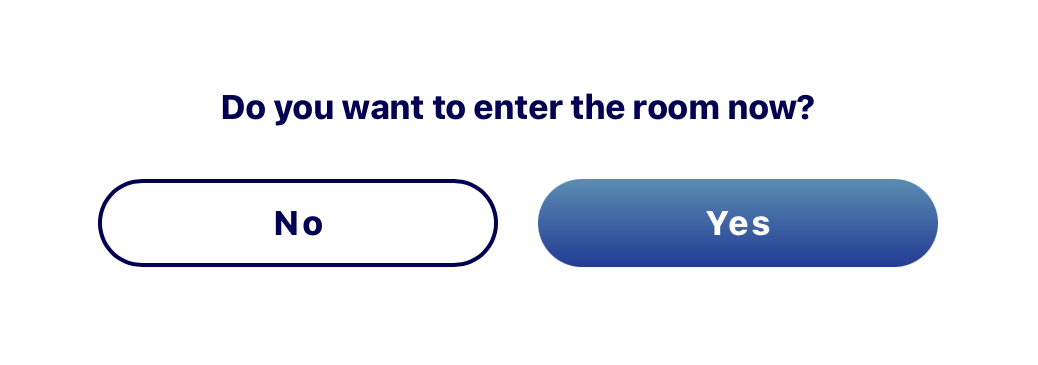
When you have successfully created a new room, you can choose whether to enter the room immediately or not. If you do not enter immediately, the room will be a “Standby Room” and saved in MY ROOMS.
Note: You can create up to three rooms.
An Active Room will last up to six hours after you create it. If you want to continue your session, you need to create a new room again.
If you do not enter a Standby Room for one month, it will automatically be deleted.
3-5-2. Sharing Room Information
Share the information about the room you created by email or social media, and wait for others to join.
You can share room information in the following ways.
- ❶ Tell others the room name and password
- ❷ Sharing the Room ID
a. In the MY ROOMS window, click the previously created room card to display details. Then the room ID can be copied.
b. While in a room, open the room details for the room you are currently in below the input area. Then the room ID can be copied. - ❸ Click the X button on the room window when in the room
This will open X in your browser so you can tweet room information.
- ❹ Press the “Copy link” button on the screen when in the room
This will copy the URL link to the room on your clipboard. Users who receive the link via social media or email can click the link to open the application and enter the room.
3-5-3. Editing Rooms
If you click the “Edit” button on the room card of a room you created on the MY ROOMS window, you can change the information you entered on the Edit window.
If you have set a password for the room, the “Reset Password” button will be displayed. Click the button to delete and reset the password.

3-5-4. Deleting Rooms
Click the “Delete room” button to delete a room you created.
Note: If you do not enter the room you created, it will be a “Standby Room”. If you do not enter for one month, the room will be automatically deleted.
3-6. Entering Rooms
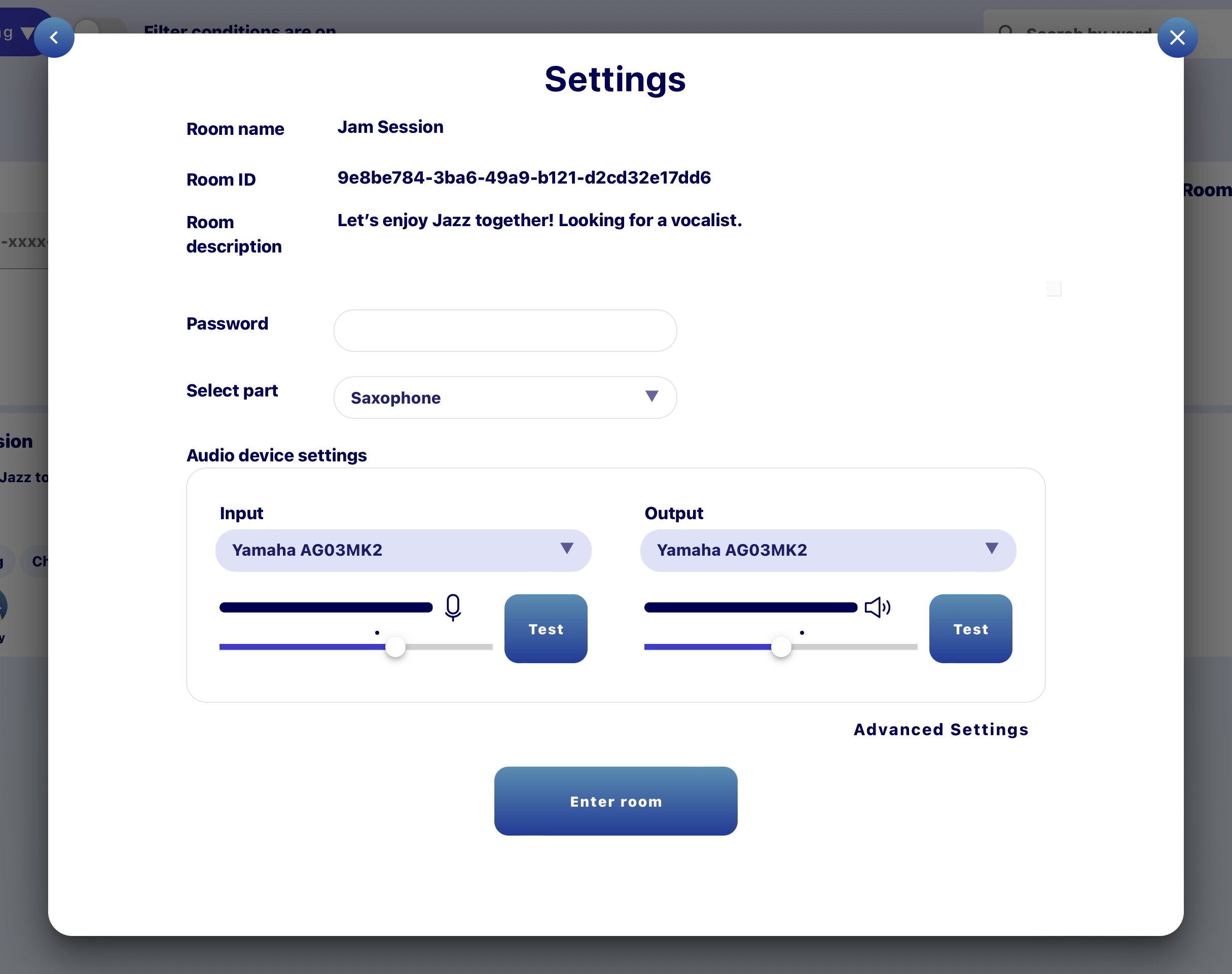
When you enter a room from the Room List or MY ROOMS, you will be redirected to the “ROOM ENTRY SETTINGS” window. From there you can perform actions such as selecting a part or configuring audio device settings. When you have finished configuring settings, click the “Enter room” button to enter.
- ❶ Selecting a part
Select the part you will play in the room. If the part you want is not on the list, select “Custom” and enter the part.
- ❷ Audio device settings
Set up your input and speaker devices. Click “Advanced Settings” to configure more detailed settings. Also see “Audio Advanced Settings”.
4. Room Screen
When you enter a room, you can enjoy a session with other users in the same room.

4-1. Input Area
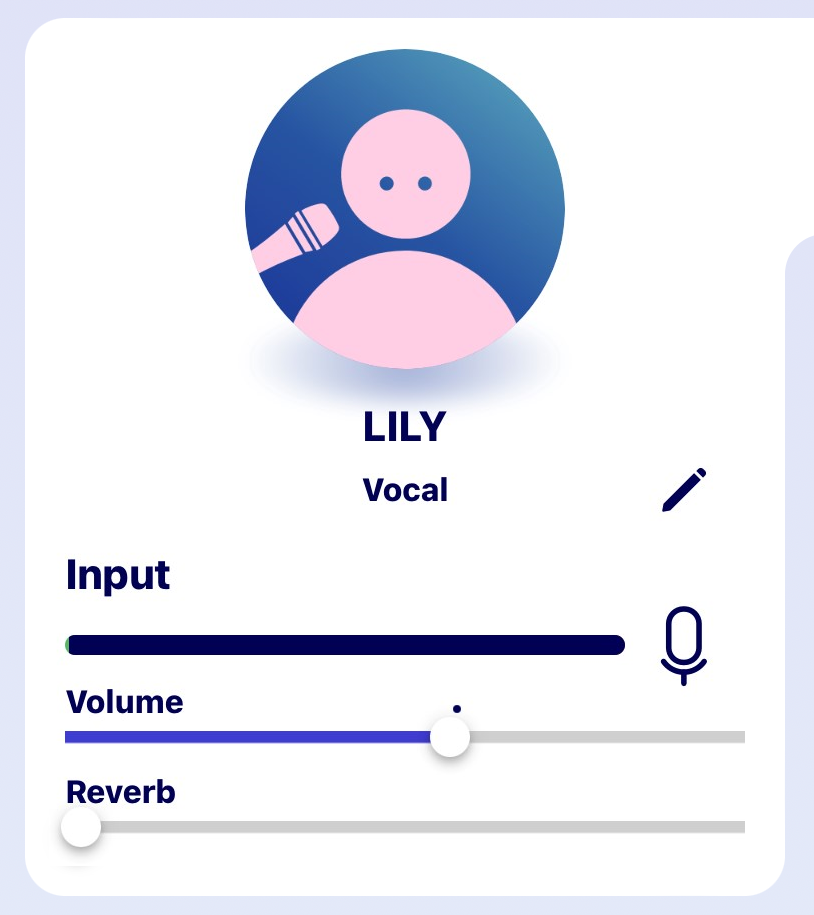
In this area you will find a volume meter, volume adjustment slider, mute button, and reverb adjustment slider for your microphone or instrument.
- ❶ Mute button
Mute the audio input.
- ❷ Volume adjustment slider
Adjust the input volume. Move the slider if the volume is too low or too high.
Note: Increasing the volume to the maximum level will cause clipping. Try lowering the volume with the volume slider or on your audio interface. - ❸ Reverb adjustment slider
Adjust the level of reverb.
4-2. Playing Audio Files
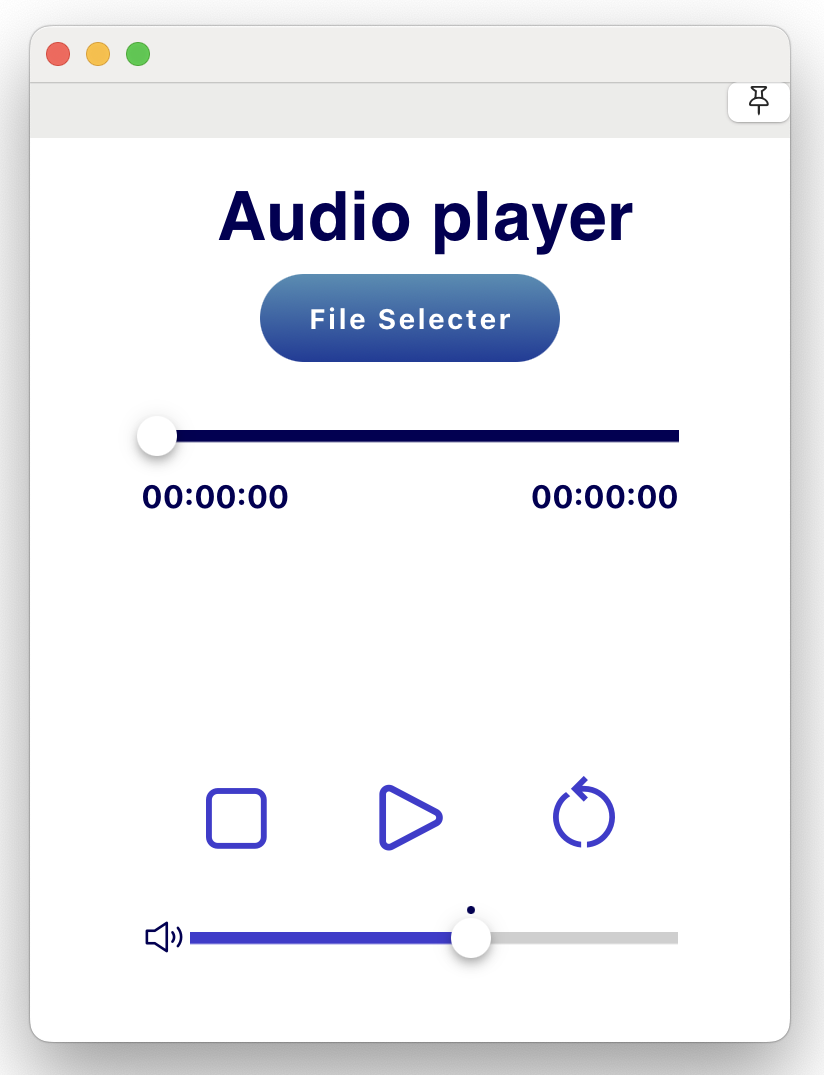
Click the audio file icon  to open the audio player window and play the selected audio file (e.g., mp3, WAV). The sound you play will be heard by all users in the same room. Try playing along with it in a session.
Note: You cannot play an audio file at the same time as the metronome. Also, you cannot play an audio file when you or another member in the room are recording.
- The seekbar will indicate the position the audio file is being played or paused. Drag the slider and click on the seekbar to move it to the desired playback position.
- Click the “Repeat” button to play the file on repeat.
4-3. Metronome
Click the metronome icon  to open the Metronome window. If you play the metronome, other members in the same room will be able to hear it.
Note: You cannot play it and the audio player at the same time.
- There are three metronome tones to choose from.
- Click the “+” and “-” buttons to change the tempo.
You can also adjust the tempo by dragging or clicking the slider.

4-4. Main Out
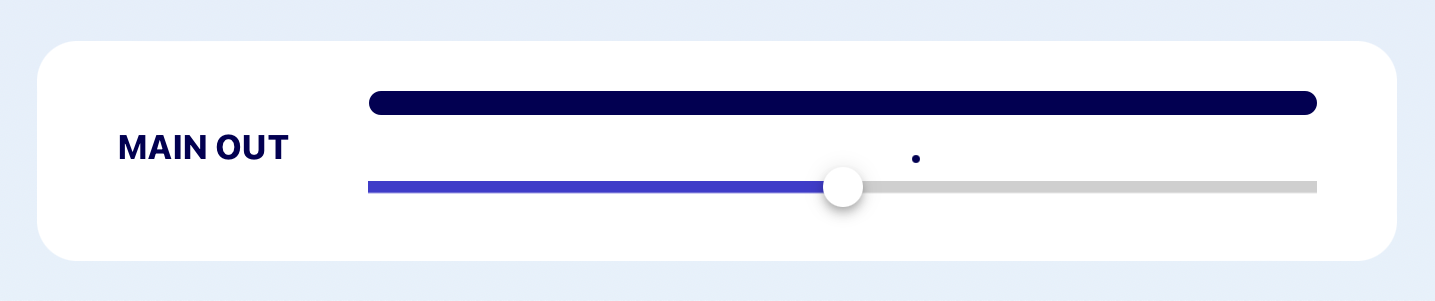
This is the overall volume encompassing the audio player, monitors of members including yourself in the room, and monitors of the linked room if the room is linked to another room. Move the slider to adjust the volume of the main out.
4-5. Recording
Click the record icon to start recording. When recording, the icon will change to “●”. Click again to stop recording. The recorded audio file will be saved in “SYNCROOM_REC” in the Music folder.
Note: If you start recording while you or another member in the room are playing an audio file, the audio file will stop playing.

4-6. EXIT
Click the “EXIT” button to exit the room. If all users exit a room, the room will become a “Standby Room”.
4-7. Member Settings Area
The members in a room, including yourself, will be listed vertically in the member settings area. Connected rooms will be displayed at the bottom of the list.
The number of people that can connect to a room changes depending on whether the room creator is signed up for a subscription plan.
[When the room creator is a free user]
Normally, six locations (*V2.0 and later versions)
Use the "Room connection" function to connect up to 12 locations
[When the room creator is a paying user]
Normally, eight locations (*V2.0 and later versions)
Use the "Room connection" function to connect up to 16 locations
The maximum number of room participants can also be set.
For details, see "3.5.1. Creating a room" and "6. Maximum room participants."
*Free users can also enter rooms created by paying users.

4-7-1. Volume and Pan Pot
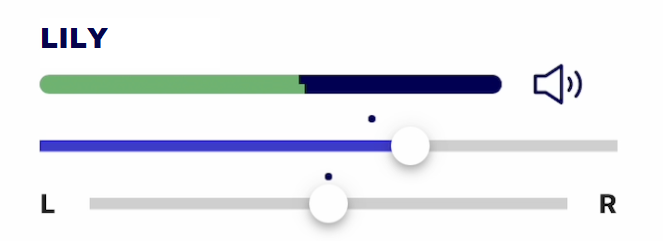
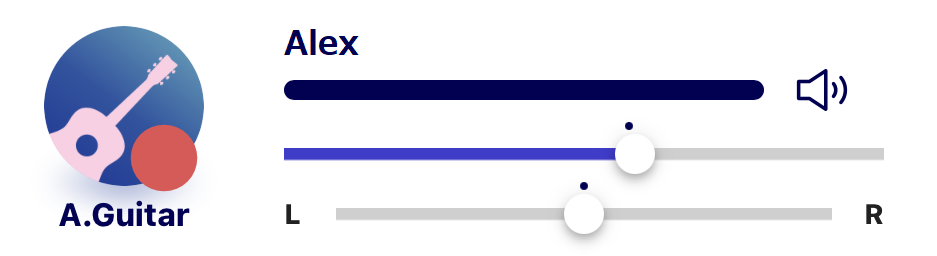
Adjust the volume and pan pot of each member with the sliders under the members’ names. The adjustments to volume and pan pot you make here will only come through your monitor. It will not affect what others hear.
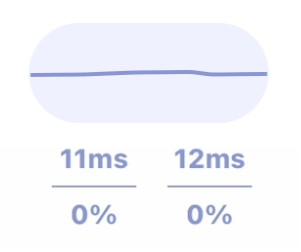
4-7-2. Connection Status
This displays the latency, packet loss rate, and connection status when sending and receiving audio with other members numerically and by waveform color.
4-7-3. Audio Advanced Settings
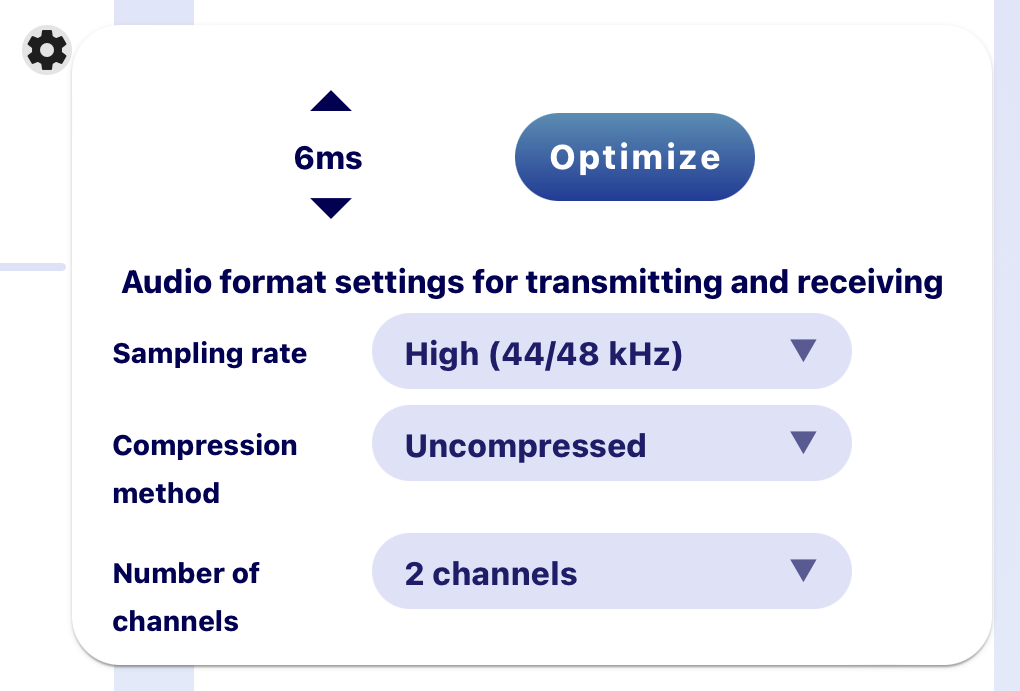
Click the gear icon on the right side of each member to open the audio advanced settings window.
- ❶ Change buffer size after receiving data
The purpose of this function is to compensate for network jitter. It measures latency time and connection status based on the ASIO buffer size immediately after connecting, and automatically sets it to the appropriate value. If there is clipping, click “Optimize” to automatically reset the buffer size. This may resolve the problem. It will not be shared with the other member.
- ❷ Change audio format
This displays the format (i.e., audio quality settings) of audio sent to and received from the member. You can change the sampling rate, compression method, and number of channels.
Note: This is the same as Basic Sound Quality Settings in the SETTINGS window.
4-7-4. Recording
The REC icon will appear on members who are recording.
4-7-5. Reconnection display
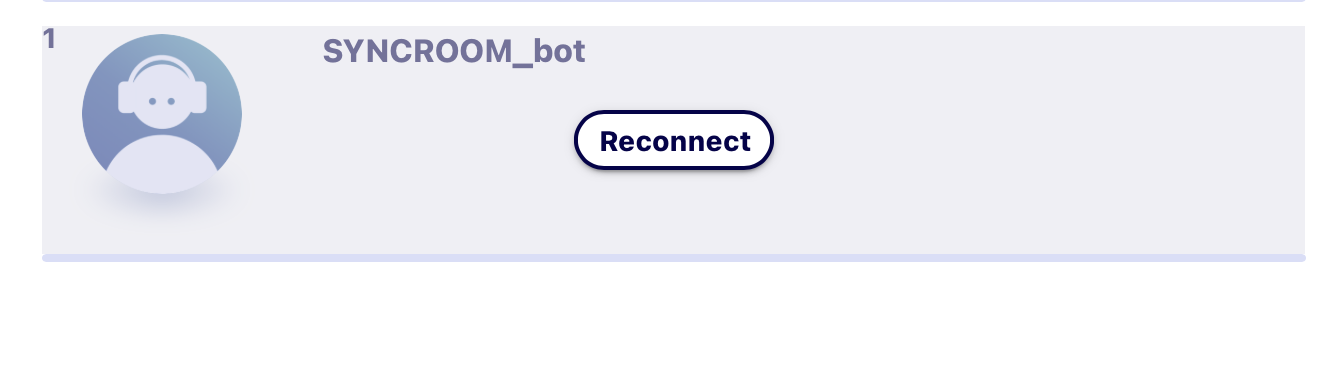
The first time connection fails, or cuts off during a session, "Reconnect" is displayed in the icon for that user. Tap the "Reconnect" button to start reconnection.
4-7-6. Connect to Room
“Connect to room” enables you to connect to one other room to hold sessions with up to 12 locations. Only the room creator can use the “Connect to room” function. When you click “Connect to room”, a list of rooms you can connect to will appear in the “Select a room to connect to” window (i.e., public active rooms). Select the room you want to connect to and send a request. A “Room connection request” will be sent to the creator of the room.

Note: If the room you are connecting to requires a password, you will need to enter the password when connecting to the room, so ask for the password of the room beforehand to enter.
The audio sent to and received from a connected room is controlled by the main out of the room creator. Therefore, you can control the volume and pan pot of the main out of the connected room, but you cannot control the volume and pan pot of different parts in the connected room.

4-7-7. X Icon
When you click the X icon, X will open in your browser and you can post #SYNCROOM and information such as your nickname and room name.

4-7-8. Share Room Link
Click the share icon to open the share window and copy the URL link to the room you are in to the clipboard. You can share the link with others you want to have a session with via email or social media. All they have to do is click the link to start up SYNCROOM and enter the room.
Note: If the room requires a password, they will have to enter the password.

4-8. Chat Area
Chat can be opened in an external window.

4-9. Room Window
If you go to another window while in a room, the room window will appear on the lower right. You can mute the microphone and main out from the room window.
Click the “Expand”  to go back to the room.

4-10. Member Detailed Display
Click an icon of a member in the room to open the detailed display of the member. You can see the member’s profile, add them to your favorites, block or report them, or force them to exit the room.
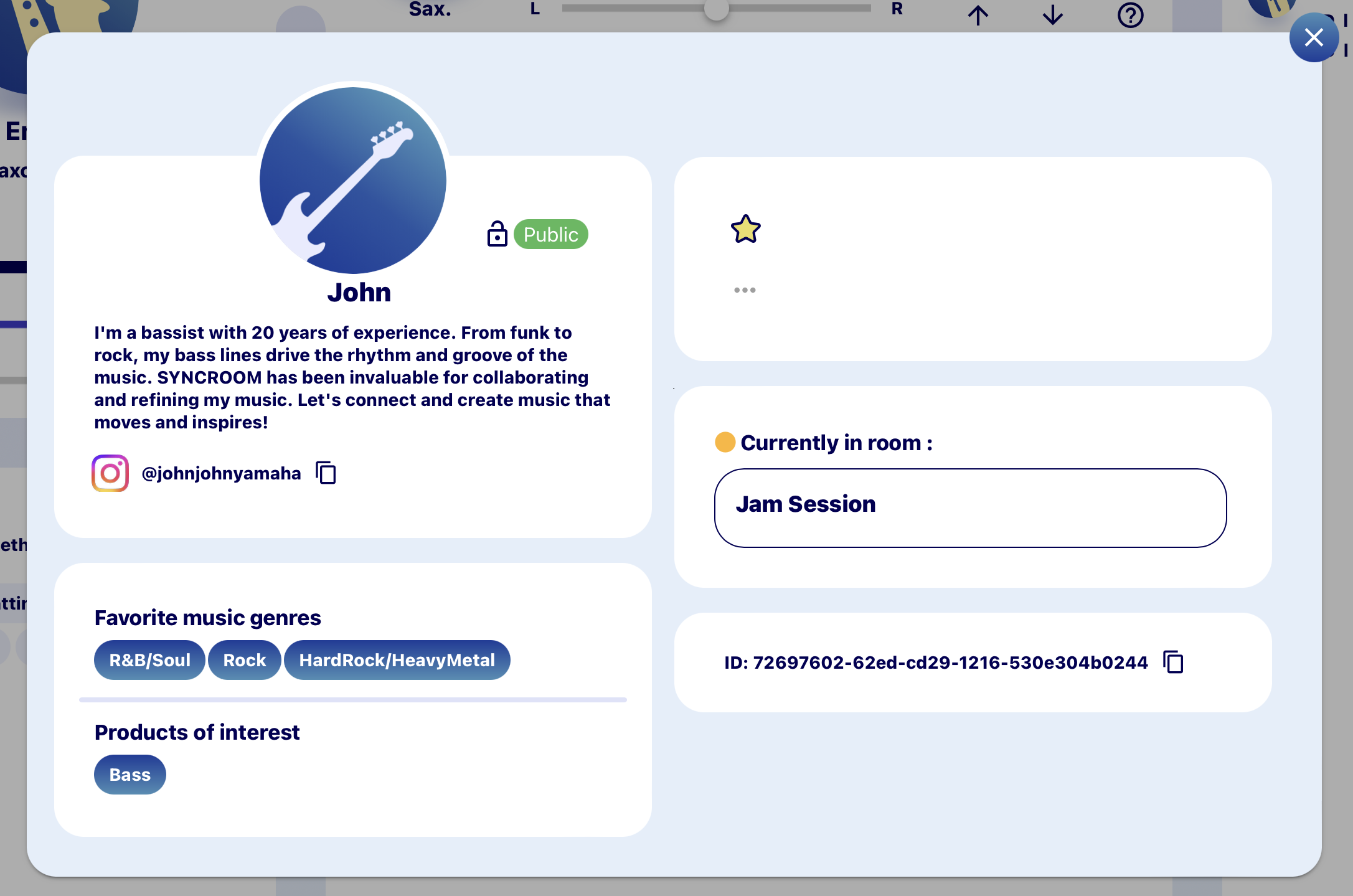
Note: Only the room creator can force others to exit the room. If you check “Add this user to the block list” when forcing them to exit the room, the user will also be blocked. See “Blocking Users” for more information on blocking users.

4-11. room details for the currently entered room.
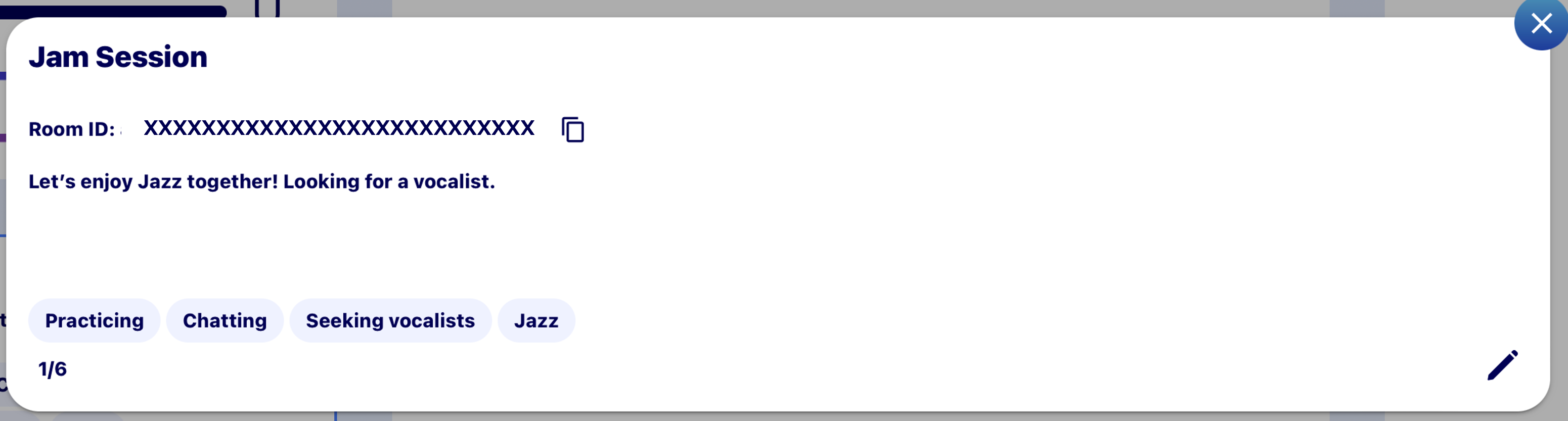
Clicking the room card under the input area opens the room details for the currently entered room.
Room IDs can be copied or room information edited.
Clicking on the pencil icon displays the direct room editing screen.
5. Users Screen
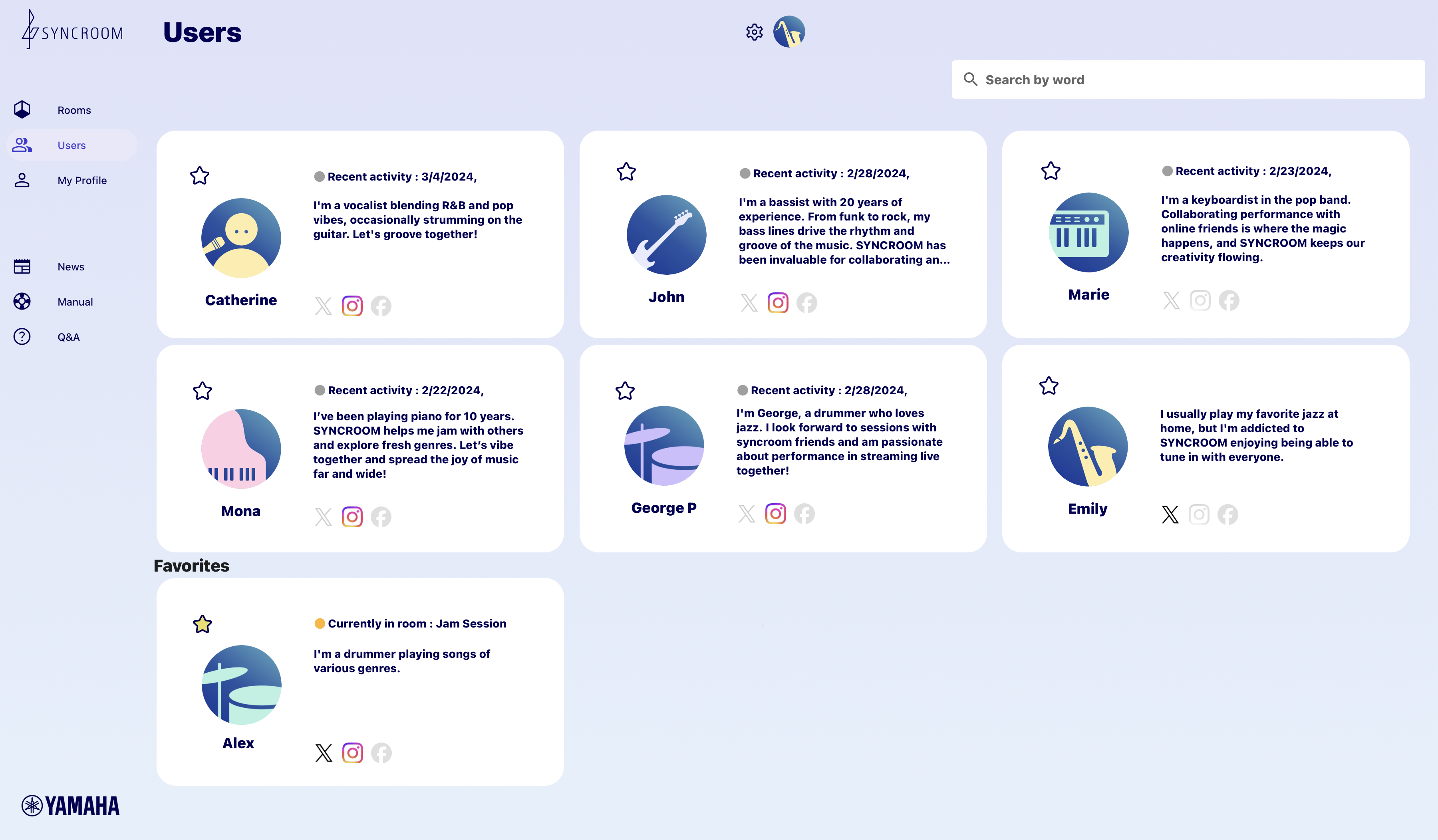
From here you can view other users’ profiles.
5-1. Searching for Users
Search for other users by criteria such as keywords in their nickname, self-introduction, favorite music genres, or products of interest. Users with private profiles, users you have blocked, and users who have blocked you will not be displayed in search results.
Note: If you do not run a search, users will be displayed randomly on the top.
5-2. User Detailed Display
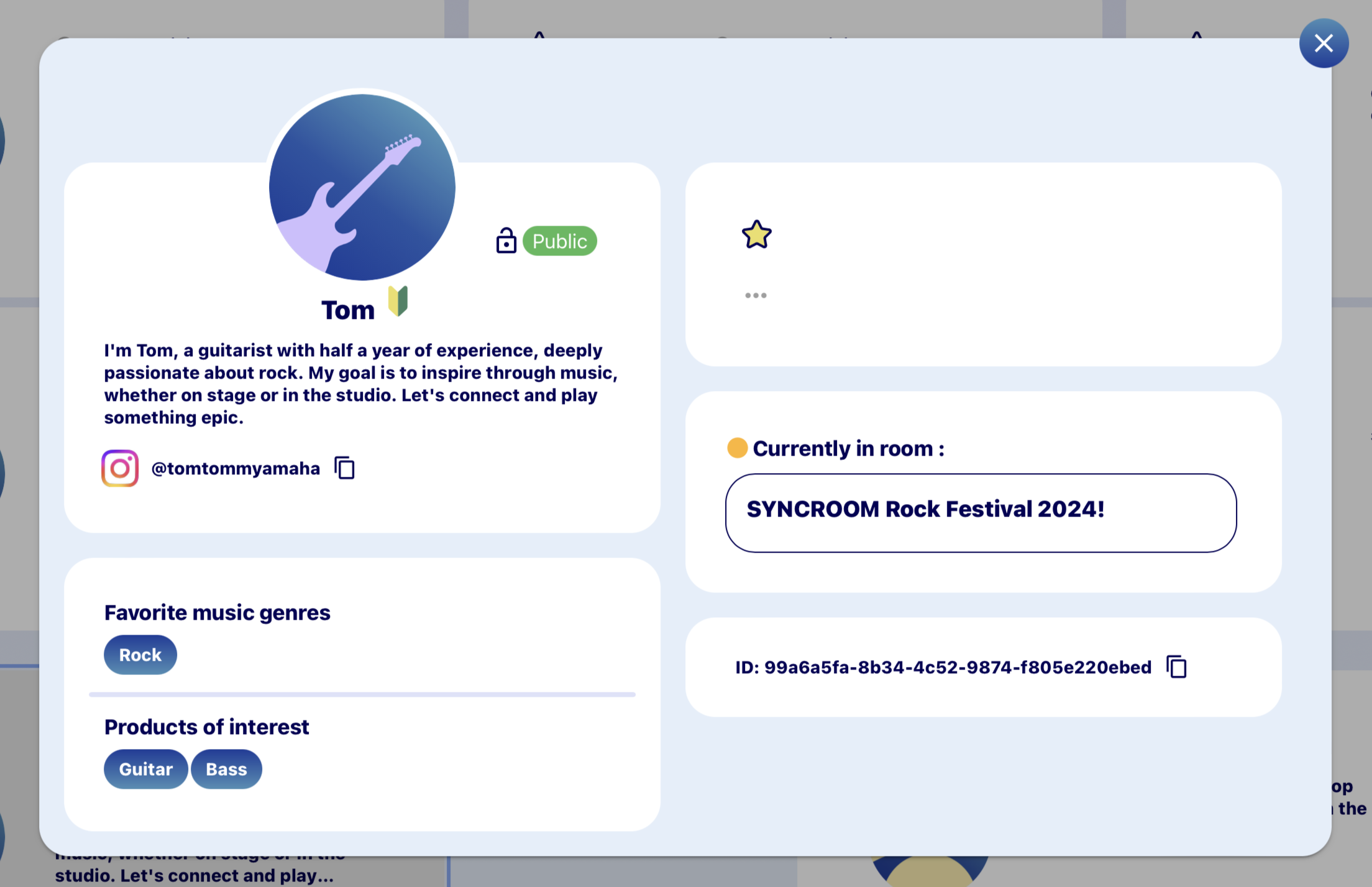
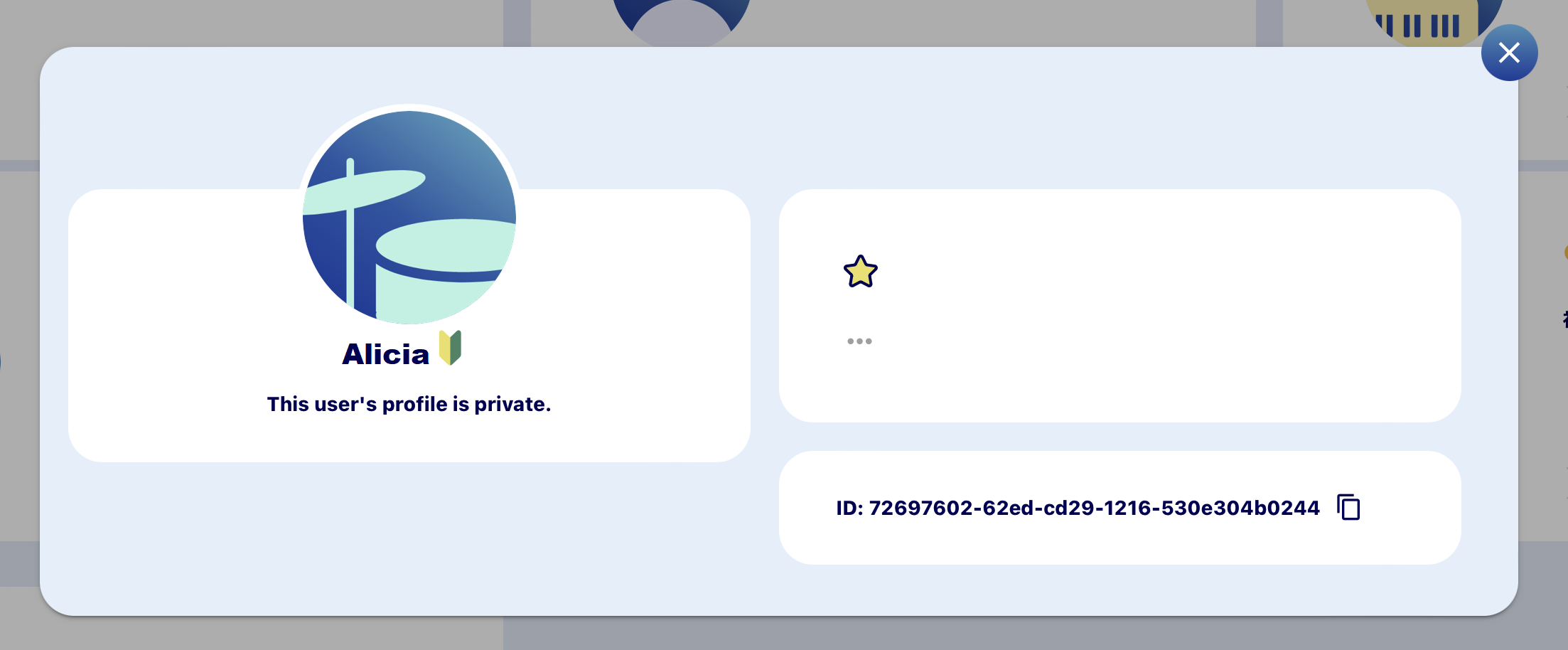
This shows the detailed profile of the user you selected. You can perform actions such as adding users to favorites, and blocking and reporting users. If the user has set their profile to private, only their icon, nickname, and Beginner symbol (if they have applied it) will be displayed.
Public profile
Private profile
5-3. Adding Users to Favorites
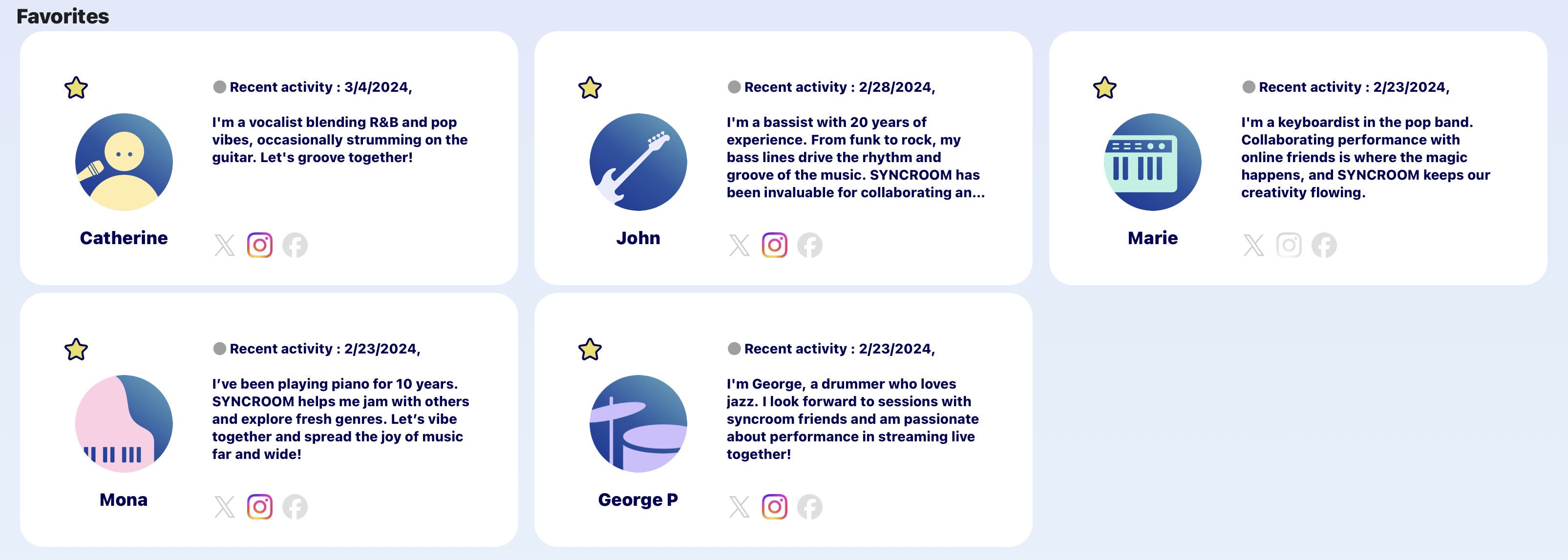
Click the “favorites” icon on the user card or detailed display of the user to add a user to your favorites. You can add up to 100 users. Click the “favorites” icon on a favorite user again to remove them from your favorites. Favorite users will be displayed under the randomly displayed users on the Users screen.
5-4. Blocking Users
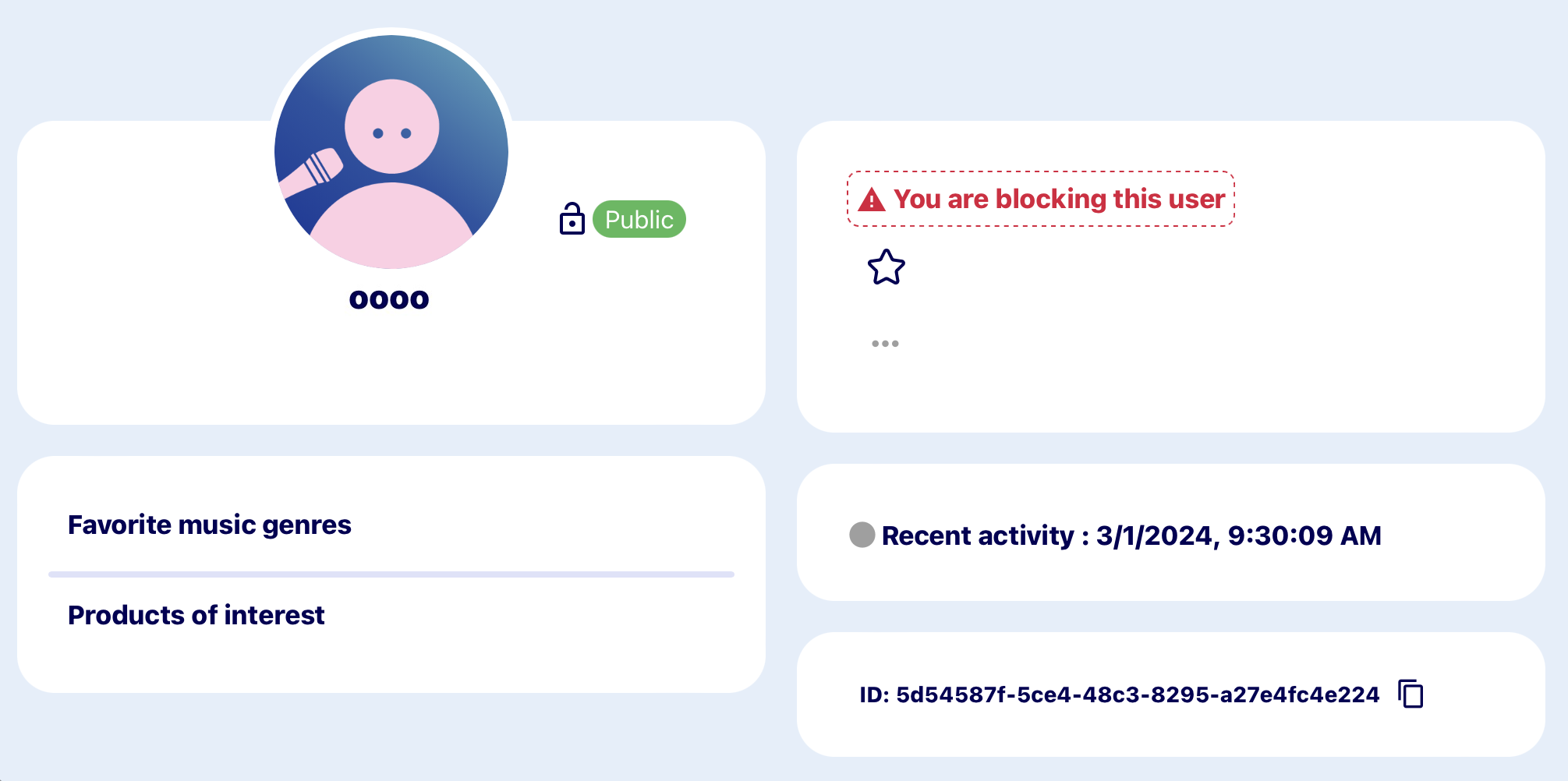
Click “…” on the detailed display of a user, and then select “Block this user” to block a user. The user will not be notified that they have been blocked.
You can check blocked users by going to “SETTINGS”, then “Account Settings”, and then to “Manage blocked users”.
- When you view a blocked user’s My Profile page, the message “You are blocking this user”, will appear.
- If a blocked user tries to view your profile, it will say “This user’s profile is private”.
- If one of you is blocking the other, the rooms created by either user will not be displayed on the other’s Room List.
- If one of you is blocking the other, neither user will show up in the other’s user search results.
- If a blocked user tries to enter a room you have created, they will automatically be forced to exit the room.
Click “Unblock this user” on the blocked user’s profile to unblock them.

6. My Profile
You can check and edit your profile, and view your session history and rooms.

- ❶ Select icon
Choose the design (shape) and color of your icon. You cannot edit your icon when linked to your X icon.
- ❷ Nickname
You can choose one nickname per account. If you select “Use my X nickname” when linked to X, you will not be able to edit your nickname.
- ❸ Self-introduction
You can write a brief description of yourself.
- ❹ Link app to X
Link to the X app and use your X icon and nickname in SYNCROOM, or set it to automatically tweet when you create a room. Follow the steps below to link to X.
- Link to X (when first setting up)
(1) Click the “Link app to X” button on the profile edit screen.
(2) Your browser will open, and the X authorization window will appear. Log in to your X account if you are not already logged in.
(3) Click “Authorize app”.
(4) If authorization is successful, you will be redirected back to the profile edit screen.Note: By default, your X icon and nickname will be used.
- Change linked X items
(1) Click “Link app to X” on the profile edit screen.
(2) The following items will be checked, but you can uncheck them if you want.
Note: By default, “Use my X icon as My Profile icon” and “Use my X nickname” will be checked.- Tweet automatically when creating a room
When a room you created is active, it will be automatically tweeted. - Use my X icon as My Profile icon
The icon you use for X will be used in SYNCROOM. - Use my X nickname
The nickname you use for X will be used in SYNCROOM.
- Tweet automatically when creating a room
- Disconnect from X
(1) Click “Link app to X” on the profile settings (edit) screen.
(2) If you click “Disconnect from X”, the link will be disconnected and you will be redirected back to the profile settings (edit) screen.
- Link to X (when first setting up)
- ❺ Social media links
Register your social media account IDs and URLs.
- ❻ Favorite music genres
Select your favorite music genres.
- ❼ Products of interest
Select products that interest you.
- ❽ Show Beginner symbol
Choose whether to place a Beginner symbol by your nickname. This way you can let other users know you are a beginner if you are not confident in your musical skills.
- ❾ Save
Save your profile information.
Note: If “Make profile public” is off, your profile will be private. - ❿ Make profile public
If you switch “Make profile public” on, your My Profile page will be made public to users. If you switch it off, your profile will be private. Other users will only be able to see your icon, nickname, and Beginner symbol (if you have applied it), and your profile will say “This user’s profile is private”. Also, other users will not be able to search for you if your profile is private.
Note: However, system-related information such as user ID will remain public even if you set your profile to private.
7. SETTINGS
Click the  to open the SETTINGS window. Here you can configure the environment for using SYNCROOM. If you click the “Initialize all settings” button on the “General” tab page, it will initialize all settings to default settings.
7-1. Basic Settings
- To reduce latency when inputting and outputting audio to and from your computer, if using Windows you will need an ASIO driver-compatible audio interface. Install and use an ASIO driver suitable that is compatible with the audio interface you are using. If using a Mac, use the standard Core Audio audio driver. Lower the ASIO or Core Audio buffer size so that clipping does not occur. However, this will also impact the performance of your audio interface and computer.
- For example, if using speakers as monitors, it will take about 3 milliseconds* for sound that is 1 meter away to reach your ears. Using headphones will reduce the latency in sound output from other users.
Note: Wireless headphones have significant latency, so these are not recommended.
*I millisecond = 1/1,000th of a second - SYNCROOM’s sound quality settings will have little impact on your connection speed. Therefore, normally keep it set it to “High sound quality” if possible to ensure a more enjoyable session. If you cannot connect due to insufficient network bandwidth, use a lower sound quality setting.
7-2. Audio Device Settings

You can check your audio input and output by clicking “Test” under “Input” and “Speaker”. Configure your audio device settings while testing them.
If using Windows, select one of the following under “Audio device”.
- ASIO
- WASAPI shared mode
- WASAPI exclusive mode
- DirectSound
- VST mode
Ranked in terms of sound quality and latency, ASIO is generally the best, followed by WASAPI exclusive mode, WASAPI shared mode, and finally DirectSound. For a more enjoyable session, we recommend using ASIO with SYNCROOM.
If using a Mac, you can choose between Core Audio or VST mode. Under normal circumstances, you should select Core Audio.
Note: VST mode should be selected if using SYNCROOM as a VST plug-in on a DAW or other host application.
7-2-1. If You Selected ASIO (Windows)
- ❶ Audio device
Select “ASIO” in audio interface and then select the name of the ASIO device you will use in the Input/Output field.
*Installing an ASIO driver compatible with the audio interface you are using will allow you to select “ASIO”. - ❷ Sampling rate
Set the sampling rate to the sampling rate of the audio interface you will use. SYNCROOM supports 44100Hz (44.1kHz) and 48000Hz (48kHz) sampling rates. If the sampling rate of your audio interface does not match the sampling rate selected in Settings, SYNCROOM will not work. Some types of audio interfaces allow you to change the sampling rate. If your interface is set to 96kHz or 192kHz, change it to SYNCROOM-supported 44.1kHz or 48kHz.
- ❸ Buffer size
Buffer size can be set in the control panel
 If you set the buffer size as low as possible (we recommend 64-128 samples or 2-4 milliseconds), you will have less latency and a more enjoyable session. If you hear clipping with this setting, increase the buffer size little by little until you no longer hear it.
 - ❹ Monitor input
Configure your audio input monitoring settings. You can select from three types: “Do not monitor”, “Monitor (with latency)”, and “Monitor (without latency)”. As long as there is no significant latency, we recommend “Monitor (with latency)” to make it easier to sync up with other musicians. For details, see “Is there a trick to using SYNCROOM enjoyably?” in the FAQ.
- ❺ Channel settings
- Input in stereo
Check “Handle as stereo” to handle the selected input channels as stereo. Use this when playing an instrument with stereo output such as a synthesizer. - Extension input channel
You can use this if you have three or more input channels on your audio interface. Use it if you want to talk or sing while playing an instrument with stereo outputs such as a synthesizer. - Output channels
Set the output channels of your audio interface.
- Input in stereo
7-2-2. If You Selected “WASAPI shared mode” or “WASAPI exclusive mode” (Windows)
There are two WASAPI modes: WASAPI shared mode and WASAPI shared mode. They have the following features:
- WASAPI shared mode
This has a higher latency than WASAPI exclusive mode. You will be able to use SYNCROOM at the same time as other applications. (Other applications you are using at the same time will also produce sound.) - WASAPI exclusive mode
This has a lower latency than WASAPI shared mode. When using SYNCROOM, you will not be able to produce sound from other applications.
- ❶ Audio device
No specific setting is required in either mode. However, you should select the devices you will use if you are using multiple audio devices such as internal speakers and a USB headset. If “--” appears for your input or output device, you will not be able to open the audio device. Press microphone or headphones to open the device.
- ❷ Sampling rate
You can only choose a sampling rate of 44100Hz with WASAPI shared mode, but you can choose 44100Hz or 48000Hz with WASAPI exclusive mode.
- ❸ Buffer size
We recommend a buffer size of 512 in WASAPI shared mode and 192 in WASAPI exclusive mode, but if clipping occurs, increasing the buffer size may solve the problem.
- ❹ With WASAPI, you cannot configure the “Monitor input” or “Channel” settings.
7-2-3. If You Selected DirectSound (Windows)
You cannot select or change any of the audio device settings if you select DirectSound. The sampling rate will automatically be set to 44100Hz and buffer size to 20 milliseconds.
7-2-4. If You Selected Core Audio (Mac)
- ❶ Audio device
Select the input and output devices you will use. If using an external audio interface, in general we recommend setting the same device for input and output. (See “The sound is distorted” in the FAQ).
- ❷ Sampling rate
SYNCROOM supports 44100Hz (44.1kHz) and 48000Hz (48kHz) sampling rates. If the sampling rate of your audio device does not match the sampling rate you selected in the audio device settings, SYNCROOM will not work. Some types of audio interfaces allow you to switch the sampling rate. If your interface is set to 96kHz or 192kHz, change it to SYNCROOM-supported 44.1kHz or 48kHz.
- ❸ Buffer size
Select as low of a buffer size as possible. This will keep latency low and allow you to have an enjoyable session. If there is noise in the audio, increase the buffer size little by little until the noise is gone.
- ❹ Monitor input
Configure your audio input monitoring settings. You can select from three types: “Do not monitor”, “Monitor (with latency)”, and “Monitor (without latency)”. To minimize latency, we recommend “Monitor (with latency)”. For details, see “Is there a trick to using SYNCROOM enjoyably?” in the FAQ.
- ❺ Channel settings
Select the input channels of your audio interface.
- Handle as stereo
Check “Input in stereo” to handle the selected input channels as stereo. Use this when playing an instrument with stereo output such as a synthesizer. - Extension input channel
You can use this if you have three or more input channels on your audio interface. Use it if you want to talk or sing while playing an instrument with stereo outputs such as a synthesizer. - Output channels
Set the output channels of your audio interface.
- Handle as stereo
7-3. Audio Data Interpolation Processing Settings
The “Enable audio data interpolation processing” function is for stabilizing the reception of audio data. It is enabled by default, but depending on your system environment, disabling it may solve problems such as distorted audio.

7-4. Basic Sound Quality Settings
In “Basic Sound Quality Settings”, you can set the sound quality of audio data transmitted between you and other members. You can make approximate changes to the sound quality by selecting “High sound quality”, “Standard”, or “Prioritize bandwidth” on the left side of the figure below.

If you select “Prioritize sound quality”, since high sound quality requires more network bandwidth, the sound may cut off or latency may increase if your connection lacks sufficient bandwidth. If this happens, lower the sound quality by selecting “Standard” or “Prioritize bandwidth”. You can also make more detailed adjustments to sound quality by changing the settings on the right.
7-5. General Settings
You can configure the following settings in the “General” tab.

7-5-1. MIDI Control Settings
SYNCROOM allows you to control the app from an external device. You can control the following with MIDI:

7-5-2. Alert Sound Settings
Checking “Enable alert sound” will make an alert sound when an error occurs or when a new member enters the room. You can also adjust the volume of the alert sound by moving the slider.
7-5-3. Automatic display of new chat messages
Activating "Show new chat messages automatically" will open the chat window and scroll automatically when a new chat message arrives.
7-5-4. Display of Recommended Updates
Select whether to display information on the latest version that is recommended for updating when the app starts up. Click “Check for updates” to check the latest update information.
7-5-5. Privacy Settings
SYNCROOM collects data on how customers use the app to improve service. If you check “Allow data transmission”, information on how you use the app will be sent. Uncheck it to stop sending information.
Note: “Allow data transmission” is checked by default.
7-6. Environment Test
Note: The results of the environment test do not guarantee that SYNCROOM will work. Connectivity and stability will differ depending on the time of day and other connected users, so use this to check your own system.
7-6-1. Performing an Environment Test
When you open the “Environment test” tab, it will first check your internet connection. When it has finished checking, the following window will appear.
Click the “Start check” button to start measuring. If you click the “Cancel” button while it is measuring, you will be redirected back to the previous window.

7-6-2. Confirming Results
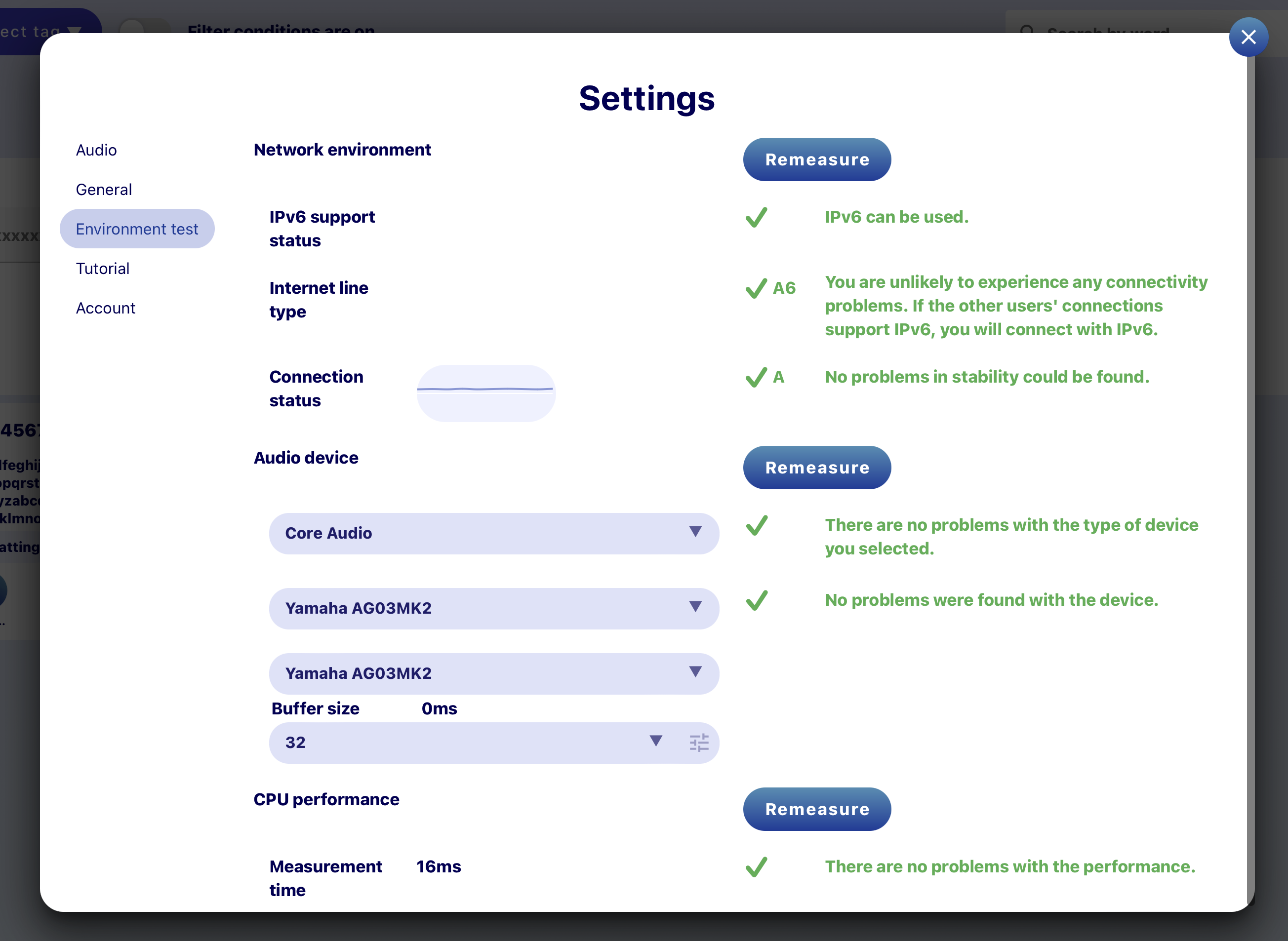
Once measurement has been completed, the results will appear as follows. Be sure to check the details. If you click the “Remeasure” button on the bottom, you will be redirected back to the window before the “Start check” window so you can remeasure all the items from the beginning.
The following is an explanation of each measurement result category.
- ❶ IPv6 support status
This checks if your connection supports IPv6 communication. Although SYNCROOM can be used even if your connection does not support IPv6, we recommend using an IPv6 IPoE connection with SYNCROOM.
- ❷ Internet line type
This determines your connection and router type. If there is a connectivity issue with SYNCROOM, an explanation will be displayed under “Type Code”.
Note: Depending on your system environment, the results may differ depending on the situation even with the same connection. This is only a guide. Connectivity with SYNCROOM will also differ depending on the other connected users and time of day. Also see the following in the FAQ.“Which connection can I use?”
“What is IPv6/IPv6 IPoE?”
“Unable to connect”.Type code:
Type code is a notation method unique to Yamaha. Currently there are 12 types: A to C, A6 to C6, AU to CU, and AU6 to CU6.- A to C: Indicates the characteristics of the connection/router. If it is A or B, there will be no problems connecting with SYNCROOM in most cases.
- U: Indicates whether port mapping by UPnP can be used. If your connection supports UPnP, connectivity with IPv4 will be improved.
- 6: Indicates whether IPv6 is supported. If the other users’ connections also support IPv6, you will connect with IPv6.
- ❸ Connection status
This measures the latency of communication with the test server and displays the result. Use this only as a guide, as it may vary depending on the time of day and other factors.
- ❹ Audio Device
This checks the type of audio device you selected and its operational stability. You will need to reduce the buffer size for real-time sessions, but if it indicates that there are stability problems, increase the buffer size slightly and check again. Also see the following in the FAQ.
“I heard that the ASIO driver is recommended for Windows. What is the ASIO driver?”
“How should I set the ASIO driver / WASAPI?”
“The sound is distorted”. - ❺ CPU Performance
This measures the processing speed of the CPU. If it seems there will be problems with running SYNCROOM, an explanation will be given on the screen.
7-7. Tutorial
View the tutorial again.
7-8. Account
You can check and manage information related to your own account, profile, and subscription plan status.
- ❶ Delete profile information
Delete information including SYNCROOM nickname and icon.
- ❷ Manage and confirm member information
You will be redirected to the Yamaha Music ID member site.
- ❸ Check public profile
Displays your My Profile page. You can check the profile information you have made public to other users.
- ❹ Manage blocked users
Displays the list of users you have blocked. You can also unblock users and specify IDs to block users here.
- ❺ Log out
Log out and restart the app. After it restarts, you will need to log in again to use the app.
- ❻ Subscription plan status
Displays your current subscription plan.
("Free" appears if you are not signed up for a subscription plan.)
Please see the "Subscription plan" FAQ for details on subscription plans.
*The subscription plan is offered in Japan only as a beta version for evaluation, and is only displayed for users in Japan.
8. How to Use the VST Linkage Function
8-1. About the VST Linkage Function
Using VST plug-ins allows you to work in linked to DAWs and the like.
When SYNCROOM is started normally, it exchanges audio directly with the audio interface. When working linked with VST, SYNCROOM's audio communicates with your DAW or other VST host application via VST plug-ins.
SYNCROOM Audio Flow

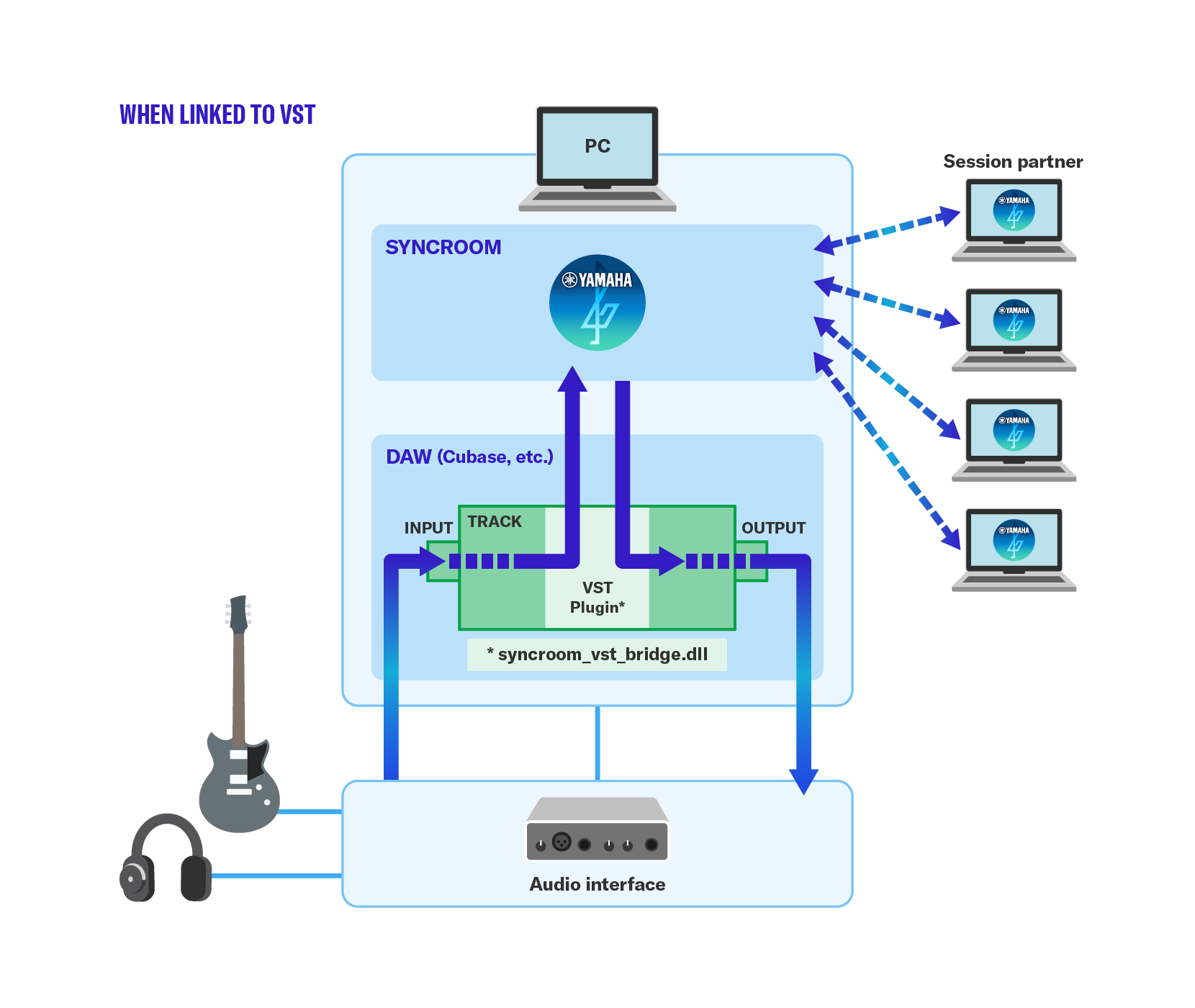
The VST plug-in itself does not have SYNCROOM functions, and only exchanges audio with the SYNCROOM app itself. The audio input to the VST plug-in is sent as input to SYNCROOM, and the audio output from SYNCROOM (monitoring sound and each member's audio mixed) is returned as output of the VST plug-in.
SYNCROOM starts automatically when you use VST plug-ins in your DAW. If you start SYNCROOM again after that, if the VST plug-in is inserted, it will automatically be in the VST linked state.
- When working with VST, more resources such as CPU and memory will be used than when SYNCROOM is operating alone. Depending on the performance of your PC, there may be restrictions on which VST instruments can be used simultaneously.
- The attached VST plug-in may not be compatible with all DAWs (VST host applications).
- Depending on the DAW, the display of SYNCROOM's delay time may be incorrect, but basically VST mode will not make the delay shorter than SYNCROOM alone.
8-2. Installing VST Plug-ins
First, download SYNCROOM, extract the files and install the application.
Copy the files in the "VSTPlugins" folder in the compressed file (syncroom_vst_bridge2.vst3 or syncroom_vst_bridge_sub_multiout2.vst3) to the VST plug-in folder used in your DAW.
For example, for Cubase on Windows it would be C:\Program Files\Steinberg\VSTPlugins (depending on where it was installed).
*SYNCROOM Ver. 2.0.0 and later are compatible with VST3 plug-ins.
Each plugin has the following functions.
-
syncroom_vst_bridge2
Works as a VST FX plug-in (effect plug-in).
When you use this, SYNCROOM will start as "VST collaboration", the audio input to this plug-in will be sent as the input of SYNCROOM. The output from SYNCROOM (mixed monitor sound and each member's audio) is returned as the output of the VST plug-in. - syncroom_vst_bridge_sub_multiout2
Works as a VSTi plug-in (instrument plug-in) and is used when you want to take output from SYNCROOM with multiple outputs.
It cannot be used alone and must be used together with syncroom_vst_bridge2. It has multiple output channels, with the monitor sound and the sound from the connected members output separately.
If you are using Cubase 8 or later and ASIO-Guard is enabled, the output sound may be strange and not output correctly. In this case, disable ASIO-Guard for syncroom_vst_bridge2 and syncroom_vst_bridge_sub_multiout2 by following the steps below. The following steps are explained in Cubase 10.5.
From the menu, select Studio > VST Plugin Manager.
Click the "VST Instruments" tab.
Click the bottom left "i" button (show plugin info), then click syncroom_vst_bridge_sub_multiout2.
Click the part of "ASIO-Guard" that says "Enabled" and switch it to "Disabled".
8-3. Examples of Using VST Plug-ins
The following is a specific usage example in Cubase 10.5. The explanation below is for Windows, but the basics are the same for macOS.
*Cubase Pro is necessary to record multi-output audio separately, using syncroom_vst_bridge_sub_multiout2. Multi-output is possible with Cubase Elements, or the like, but individual recording is not possible. For specific procedures, see 8-3-4. Using as Multi-outputs.
8-3-1. Using in Combination with VST Instruments
First, add an instrument track and load the VST instrument you want to use (in this example, we will explain using Groove Agent SE).
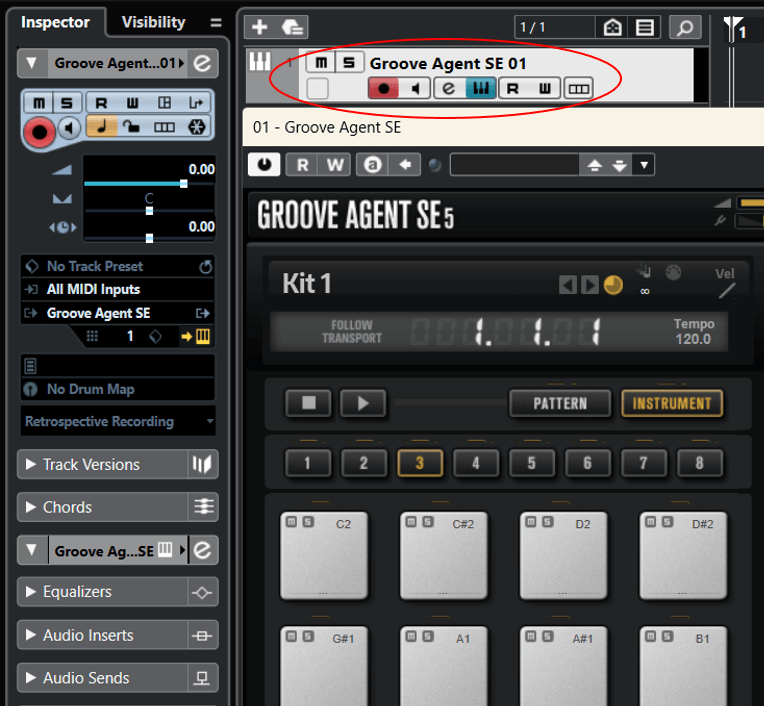
Click on "Audio Insert" and a list of effects will appear. Select syncroom_vst_bridge2 from this list.
*VST3 plugin is displayed under the OnlyRT category.

SYNCROOM will startup automatically. In this state, the audio from the instrument will be sent to SYNCROOM, and the audio from SYNCROOM will be output from the track.

While linked with the VST plug-in, "VST" icon is displayed on top of the screen.
Launching SYNCROOM while VST plug-ins are running will cause it to automatically enter VST mode.

8-3-2. Using Audio Inputted from a Microphone or Other Device
You can use input voice from your audio interface by enabling track monitoring as shown below.
*If the audio interface you are using has a direct monitoring function, set it to OFF (to avoid duplicate sounds).
Add an Audio track.

Click the monitoring button (speaker icon) (the monitoring button is located to the right of the record button "●").
This will allow incoming audio from your audio interface to be output from the track.
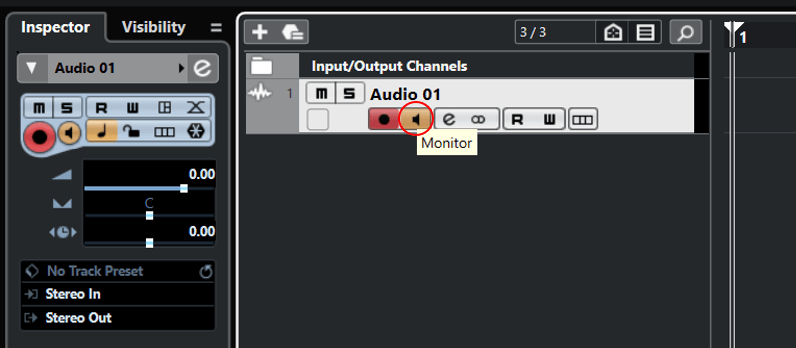
Click "Inserts" to call syncroom_vst_bridge2. Now the input voice from the audio interface will be sent to SYNCROOM.

You can also perform sessions with voice with effects applied by inserting various VST effects (such as reverb or amp simulator) before SYNCROOM.

8-3-3. Simultaneously Using Audio Inputted from a Microphone and VST Instrument
In Cubase, you can group audio from multiple tracks by using a function called "Group Channel". Specifically, the steps are as follows.
Add a "group track".
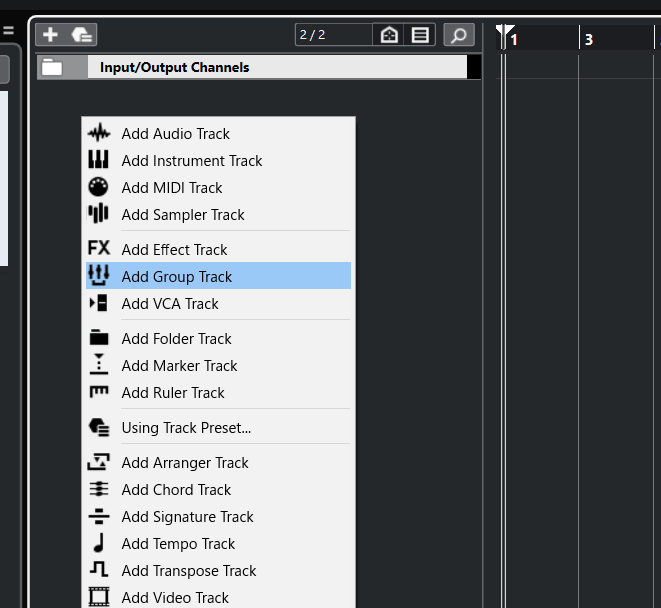
Next, add an Audio track.
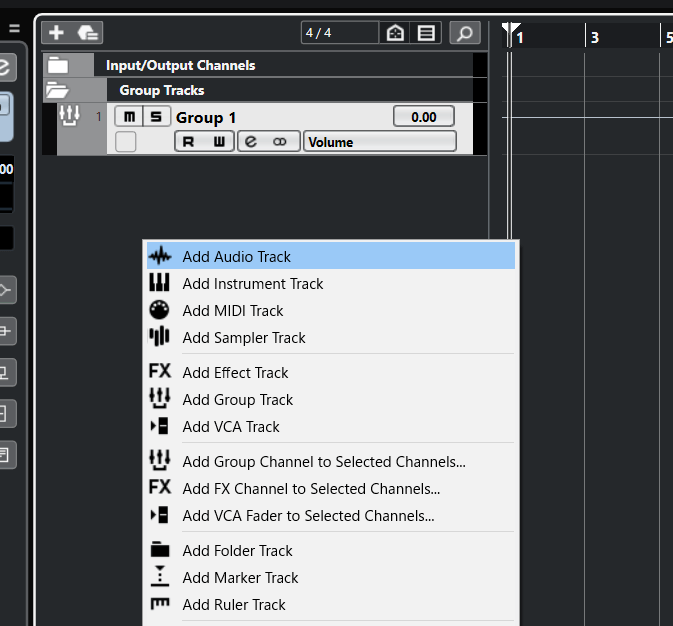
As in 8-3-2 above, click the "monitoring button" to enable inputs such as the microphone.
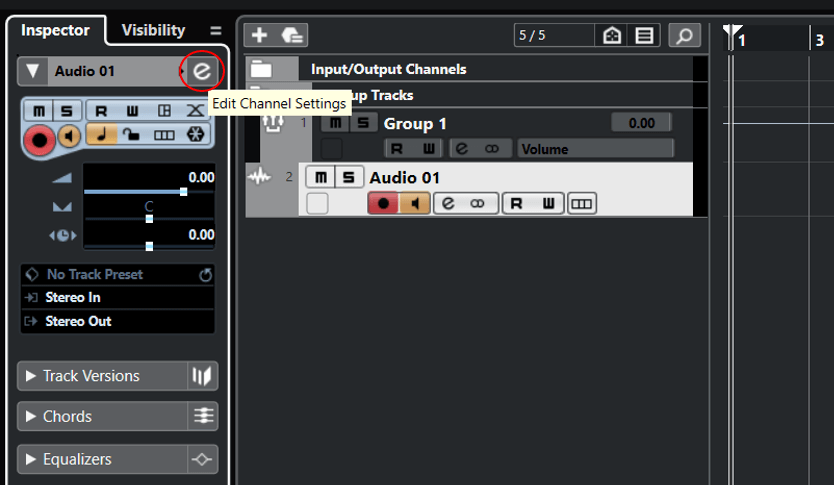
Click the button labeled "e" (edit channel settings) for the added audio track.
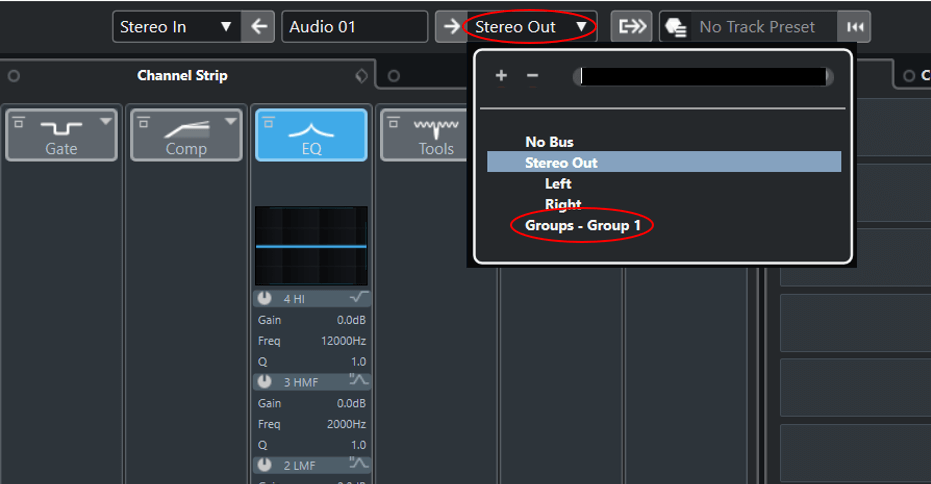
The channel setting screen will be displayed. Click on the right side of the track name (such as "Audio 01") in the upper left of the screen and select the created group channel (Group-Group1).
Then add an instrument track and load the VST instrument you want to use. After that, follow the same steps as the audio tracks described above to set the output of the VST instrument's track to the same group channel (Group-Group1).

Select the "Group1" track of the group channel and call "syncroom_vst_bridge2" from "Inserts" in the inspector.
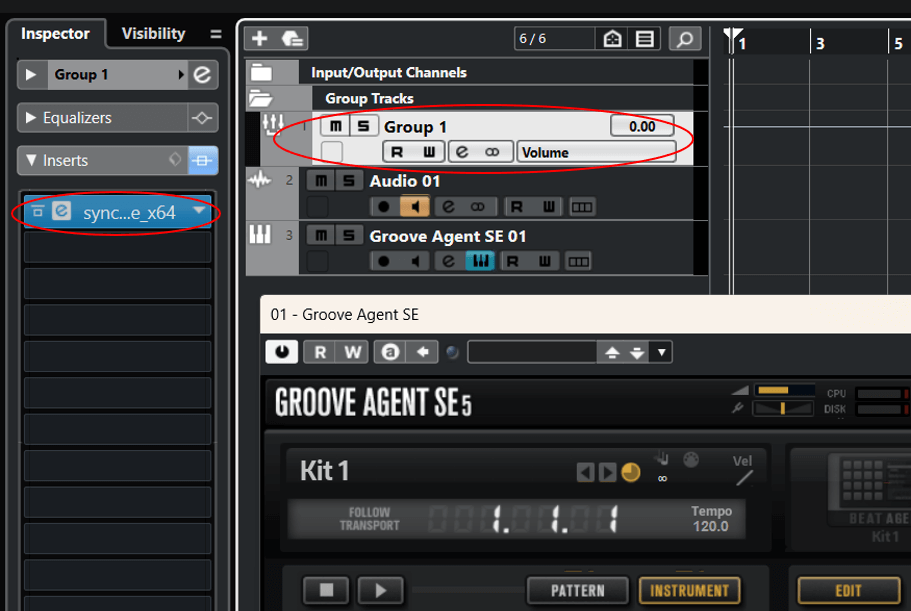
Now both the input voice from the audio interface and the audio from your VST instrument will be sent to SYNCROOM.
8-3-4. Using as Multi-outputs
First, set the above 8-3-1.
Click “Studio” in the Cubase menu and select “VST Instruments”.

From the "VST Instruments" screen, click "Rack".
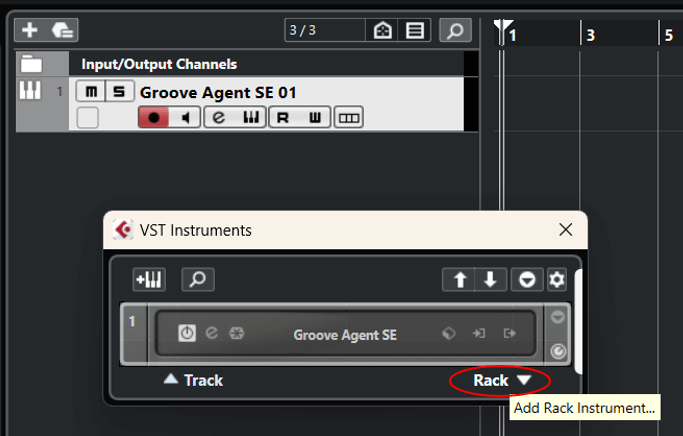
A list of instruments will be displayed. Select syncroom_vst_bridge_sub_multiout2.

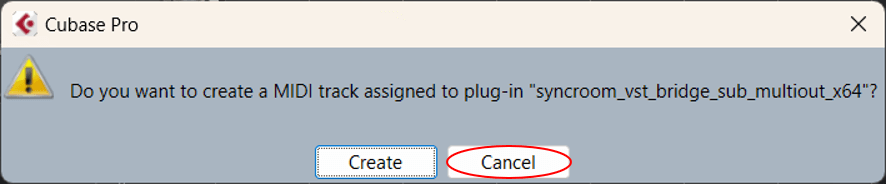
If you see a dialog asking whether you want to create a MIDI track, then you can click Cancel.
From the "VST Instruments" screen, click the "Enable Outputs" button and select "All Outputs".
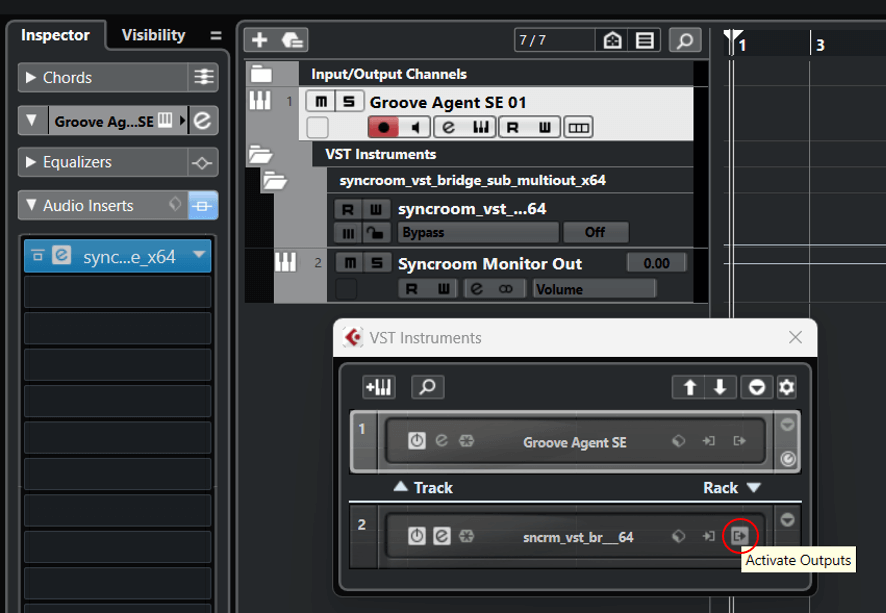

You will see multiple stereo tracks on the screen. They correspond to monitor output, the Each locations of connected members, and the room connection audio (audio that reflects the pan pot on the SYNCROOM screen is output).

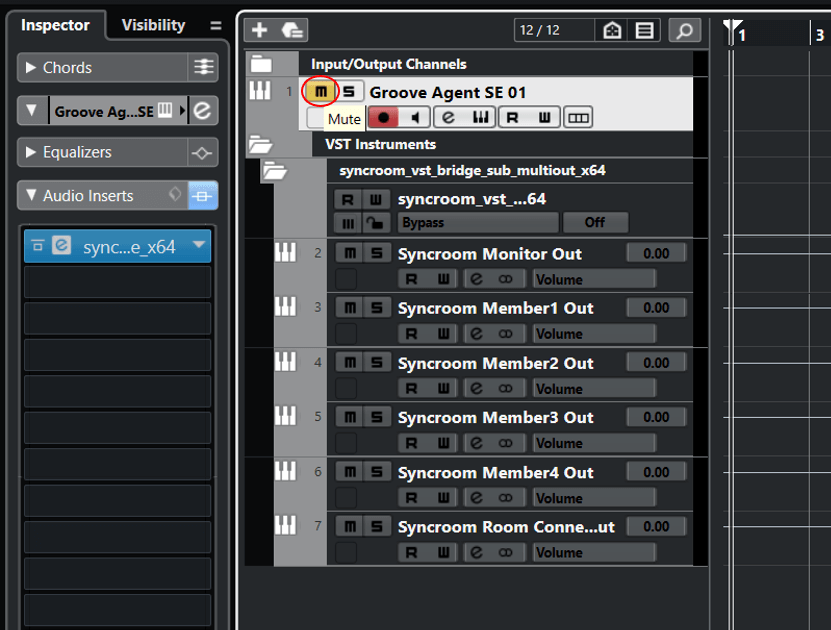
The multi-output settings are now complete, but since the original track (the track with the syncroom_vst_bridge2 inserted) and the output voice will be duplicated, so mute this.
If you are using Cubase Pro, you can record each part individually by combining it with the group channel function.
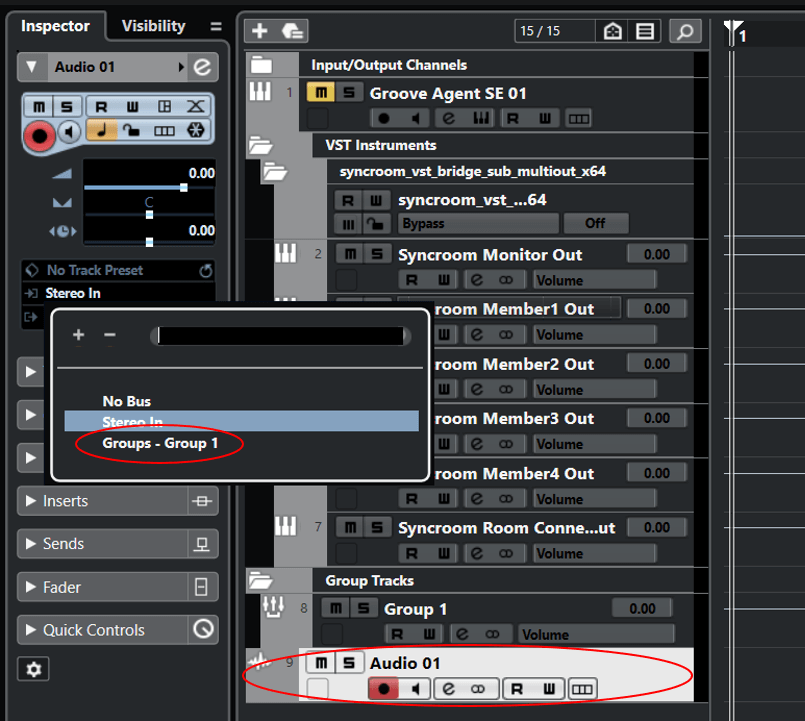
Create a group track and set the channel output of the instrument you want to record to that group track.

Create an Audio track for recording. Set the Audio track's input to the group track you want to record.
9. General functions
9-1. Keyboard shortcuts
| Function | Windows shortcut | macOS shortcut | Screens where available |
| Open My Rooms | Ctrl + 0 | command + 0 | Rooms |
| Create room | Ctrl + n | command + n | My Rooms |
| Toggle input muting | Ctrl + Shift + m | command + Shift + m | Any location |
| Recording toggle | Ctrl + Shift + r | command + Shift + r | In room |
| Display audio player | F4 | F4 | In room |
| Display metronome | F5 | F5 | In room |
| Display chat | F6 | F6 | In room |
- Watch the Easy Startup Guide video
- 1. Before Using SYNCROOM
- 1-1. Recommended Environment
- 1-2. Communication Environment
- 2. How to Install SYNCROOM
- 2-1. Download
- 2-2. Install
- 2-2-1. For Windows
- 2-2-2. For Mac
- 2-3. Uninstall
- 2-3-1. For Windows
- 2-3-2. For Mac
- 2-4. Start the application
- 3. Rooms Screen (Home Screen)
- 3-1. Room Search Area
- 3-2. Entering a Room by Entering a Room ID
- 3-3. Toggling Between Room Tabs
- 3-4. Room Cards
- 3-5. MY ROOMS
- 3-5-1. Creating Rooms
- 3-5-2. Sharing Room Information
- 3-5-3. Editing Rooms
- 3-5-4. Deleting Rooms
- 3-6. Entering Rooms
- 4. Room Screen
- 4-1. Input Area
- 4-2. Playing Audio Files
- 4-3. Metronome
- 4-4. Main Out
- 4-5. Recording
- 4-6. EXIT
- 4-7. Member Settings Area
- 4-7-1. Volume and Pan Pot
- 4-7-2. Connection Status
- 4-7-3. Audio Advanced Settings
- 4-7-4. Recording
- 4-7-5. Reconnection display
- 4-7-6. Connect to Room
- 4-7-7. X Icon
- 4-7-8. Share Room Link
- 4-8. Chat Area
- 4-9. Room Window
- 4-10. Member Detailed Display
- 4-11. room details for the currently entered room.
- 5. Users Screen
- 5-1. Searching for Users
- 5-2. User Detailed Display
- 5-3. Adding Users to Favorites
- 5-4. Blocking Users
- 6. My Profile
- 7. SETTINGS
- 7-1. Basic Settings
- 7-2. Audio Device Settings
- 7-2-1. If You Selected ASIO (Windows)
- 7-2-2. If You Selected “WASAPI shared mode” or “WASAPI exclusive mode” (Windows)
- 7-2-3. If You Selected DirectSound (Windows)
- 7-2-4. If You Selected Core Audio (Mac)
- 7-3. Audio Data Interpolation Processing Settings
- 7-4. Basic Sound Quality Settings
- 7-5. General Settings
- 7-5-1. MIDI Control Settings
- 7-5-2. Alert Sound Settings
- 7-5-3. Automatic display of new chat messages
- 7-5-4. Display of Recommended Updates
- 7-5-5. Privacy Settings
- 7-6. Environment Test
- 7-6-1. Performing an Environment Test
- 7-6-2. Confirming Results
- 7-7. Tutorial
- 7-8. Account
- 8. How to Use the VST Linkage Function
- 8-1. About the VST Linkage Function
- 8-2. Installing VST Plug-ins
- 8-3. Examples of Using VST Plug-ins
- 8-3-1. Using in Combination with VST Instruments
- 8-3-2. Using Audio Inputted from a Microphone or Other Device
- 8-3-3. Simultaneously Using Audio Inputted from a Microphone and VST Instrument
- 8-3-4. Using as Multi-outputs
- 9. General functions
- 9-1. Keyboard shortcuts